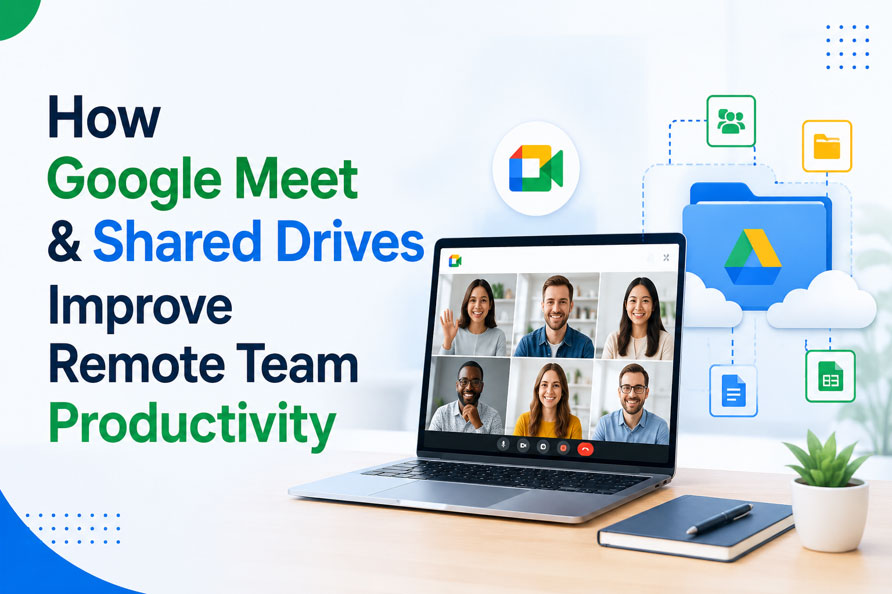
How Google Meet & Shared Drives Improve Remote Team Productivity
By Divya – Support Engineer and Google Cloud Certified Digital Leader with 2+ years of experience in Google Workspace administration at XL Technologies. Her expertise includes user account creation, permission management, email configuration, security, and ticket handling. With proven skills, she ensures smooth, secure, and efficient Workspace operations for clients. At XL Technologies, Divya plays a key role in driving digital transformation through Google Cloud solutions. She is passionate about helping businesses maximize productivity and collaboration with Google Workspace.
- Why Remote Teams Need Better Collaboration Tools
- How Google Meet Helps Remote Teams Stay Connected
- How Shared Drives Keep Team Files Organized
- Why Businesses Run Out of Email Storage
- Best Practices for Using Google Meet and Shared Drives
- Security & Compliance Features: Protecting Your Business Data
- How AI Enhances Collaboration in Google Meet and Shared Drives
- Conclusion
Remote and hybrid work have transformed the way businesses collaborate, making reliable communication and centralized file management essential for maintaining productivity. Google Meet and Shared Drives help teams stay connected, collaborate in real time, and securely access business files from anywhere, creating a more efficient and organized digital workplace.
The blog explores the challenges remote teams face and why modern collaboration tools have become essential for business success. It explains how Google Meet and Shared Drives support efficient teamwork, highlights security features that help protect business data, outlines best practices for using these tools, and explores how AI-powered capabilities in Google Workspace further improve collaboration and productivity.
Why Remote Teams Need Better Collaboration Tools
As businesses continue to embrace remote and hybrid work, teams need reliable tools that support seamless communication and collaboration. Without a centralized platform, organizations often face challenges such as:
- Delayed communication caused by lengthy email conversations.
- Multiple versions of the same document leading to confusion.
- Difficulty finding important project files and shared resources.
- Limited visibility into project progress and team activities.
- Data security risks when files are stored in personal accounts.
- Time-consuming onboarding due to scattered documents and resources.
- Reduced collaboration between employees working from different locations.
- Increased chances of duplicated work and missed updates.
- Difficulty maintaining a single source of truth for business documents.
How Google Meet Helps Remote Teams Stay Connected
Clear communication is the foundation of every successful remote team. Google Meet provides a secure video conferencing platform that enables employees to connect instantly, regardless of their location. Whether teams are discussing project updates, meeting with clients, or conducting training sessions, Google Meet makes collaboration more efficient by bringing conversations together in one place.
Real-Time Communication
Instead of relying on long email threads, teams can connect instantly through video meetings to:
- Discuss ideas and project updates in real time.
- Resolve questions and issues without delays.
- Make faster decisions that keep projects moving.
Better Collaboration During Meetings
Google Meet helps teams work together more effectively by allowing them to:
- Share screens for presentations and demonstrations.
- Review documents, spreadsheets, and reports together.
- Make live edits while discussing projects.
- Reduce the need for multiple follow-up meetings.
Improved Client and Partner Communication
Businesses can maintain professional communication with clients and partners by:
- Hosting virtual meetings from any location.
- Saving travel time and associated costs.
- Providing faster responses and better customer service.
- Collaborating with global teams more efficiently.
Seamless Integration with Google Workspace
Google Meet works alongside other Google Workspace applications, making collaboration easier.
- Schedule meetings directly from Google Calendar.
- Join meetings with a single click from Gmail or Calendar.
- Collaborate on Google Docs, Sheets, and Slides during discussions.
- Keep conversations and documents connected in one ecosystem.
Flexible Access Across Devices
Employees can stay connected wherever they work by:
- Joining meetings from desktops, laptops, tablets, or smartphones.
- Using a web browser without installing additional software.
- Accessing meetings through dedicated mobile apps.
- Participating from the office, home, or while travelling.
Advanced Google Workspace plans include additional Google Meet features to support growing businesses and more advanced collaboration needs. Want to unlock advanced Google Meet features? Contact us to find the right Google Workspace plan for your business.
How Shared Drives Keep Team Files Organized
While communication is important, every remote team also needs a reliable way to manage business documents. Shared Drives provide a centralized storage space where files belong to the organization rather than individual employees.
Unlike personal cloud storage, Shared Drives ensure that important business documents remain available even when team members change roles or leave the company. Every authorized employee works from the same files, reducing confusion and improving collaboration.
Benefits of Using Shared Drives
Shared Drives simplify document management by providing one secure location for project files, reports, presentations, policies, and other business documents.
Some of the key advantages include:
- Centralized storage for departments and teams
- Real-time collaboration on documents
- Organization-owned files
- Secure permission management
- Automatic version history
- Easy access from any device
How Shared Drives Improve Collaboration
Common Challenge | How Shared Drives Help | Business Benefit |
Files stored in personal employee accounts | Files are owned by the organization | Business data remains accessible even if employees leave |
Multiple versions of documents | Teams work on one shared file | Eliminates duplicate copies and version confusion |
Difficulty locating files | Centralized folders for projects and departments | Faster access to information |
Unauthorized file access | Role-based permissions | Better security and controlled access |
Remote employees working from different locations | Cloud-based access from any device | Supports seamless remote collaboration |
Accidental changes or deletion | Version history allows previous versions to be restored | Protects important business documents |
Time spent emailing attachments | Files can be shared directly from Shared Drives | Faster collaboration and reduced email clutter |
Shared Drives reduce administrative work while helping teams stay organized throughout every stage of a project.
Why Businesses Run Out of Email Storage
Businesses generate far more email data today than they did just a few years ago. Customer conversations, invoices, proposals, contracts, marketing campaigns, and shared files all consume storage over time.
Some of the most common reasons include:
- Large email attachments
- High daily email volume
- Long-term record keeping
- Shared project files
- Duplicate attachments across mailboxes
- Growing employee count
How Storage Usage Increases Over Time
Business Activity | Storage Impact |
Sending proposals with PDFs | High |
Sharing images and videos | High |
Customer support conversations | Medium |
Internal project discussions | Medium |
Newsletters and marketing emails | Medium |
Archived business records | High |
As your business grows, storage usage naturally increases, making limited email plans difficult to manage.
Best Practices for Using Google Meet and Shared Drives
Businesses can maximize the value of Google Workspace by following a few simple collaboration practices.
- Create separate Shared Drives for each department or project.
- Use a consistent folder structure to make files easier to locate.
- Assign permissions based on employee roles and responsibilities.
- Schedule recurring Google Meet meetings for project updates.
- Record important meetings for future reference when available.
- Use descriptive file names to avoid confusion.
- Archive completed projects to keep Shared Drives organized.
- Review file permissions regularly to maintain security.
- Encourage teams to collaborate on live documents instead of sending email attachments.
- Train employees on Google Workspace collaboration features.
Following these practices helps teams work more efficiently while protecting important business information.
Security & Compliance Features: Protecting Your Business Data
Protecting business data is a priority for every organization. Google Meet and Shared Drives include built-in security features that help keep meetings, files, and user accounts secure while enabling teams to collaborate confidently from anywhere.
Key security features include:
- Encryption to protect data in transit and at rest.
- Role-based access controls to manage who can view, edit, or share files.
- Multi-factor authentication (MFA) to strengthen account security.
- Audit logs to monitor file activity and user actions.
- Centralized user and device management through the Google Admin console.
- Data Loss Prevention (DLP) on supported Google Workspace plans to help prevent sensitive data from being shared externally.
How AI Enhances Collaboration in Google Meet and Shared Drives
Google Workspace now includes AI-powered features through Gemini, helping remote teams work more efficiently by reducing repetitive tasks and making information easier to find. Instead of spending time taking notes or searching through documents, employees can focus on discussions and decision-making.
Some of the AI-powered capabilities available in Google Workspace include:
- AI meeting notes: Gemini can capture meeting notes, summarize key discussions, and identify action items, making it easier for team members to review important information after a meeting.
- Meeting summaries: Employees who miss a meeting can quickly understand what was discussed through AI-generated summaries instead of watching the entire recording.
- Document assistance: Gemini can help draft documents, summarize lengthy reports, and suggest content directly within Google Docs.
- File discovery: Teams can locate relevant files in Google Drive more quickly using natural language search, reducing time spent looking for documents.
- Productivity assistance: AI helps users organize information, generate ideas, and automate routine tasks, allowing teams to focus on higher-value work.
As these AI capabilities continue to evolve, they further strengthen Google Workspace as a comprehensive platform for remote collaboration and productivity.
Conclusion
Google Meet and Shared Drives provide the communication and collaboration tools that modern remote teams need to work efficiently. From secure video meetings to centralized file management, they help businesses streamline workflows, improve teamwork, and keep projects moving without unnecessary delays.
As a trusted Google Workspace partner, XL Technologies helps businesses deploy and optimize Google Workspace for seamless collaboration. Whether you’re migrating to Google Workspace or enhancing your existing environment, our team provides the expertise to help your organization work smarter and more securely.
Frequently Asked Questions
1. What is the difference between Shared Drives and My Drive?
My Drive stores files owned by individual users, while Shared Drives store files owned by the organization. This ensures important business documents remain accessible even if employees leave the company.
2. Can multiple people edit files in Shared Drives at the same time?
Yes. Google Docs, Sheets, and Slides support real-time collaboration, allowing multiple users to edit, comment, and review documents simultaneously.
3. Is Google Meet secure for business meetings?
Yes. Google Meet includes enterprise-grade security features such as encrypted meetings, secure access controls, and administrative management to help protect business communications.
4. How do Google Meet and Shared Drives improve remote team productivity?
Google Meet enables fast communication through virtual meetings, while Shared Drives centralize business documents for secure, real-time collaboration. Together, they reduce communication delays, eliminate duplicate files, and help teams work more efficiently from any location.