
Can Google Sheets Replace Excel for Business? A Migration Readiness Guide
By Divya – Support Engineer and Google Cloud Certified Digital Leader with 2+ years of experience in Google Workspace administration at XL Technologies. Her expertise includes user account creation, permission management, email configuration, security, and ticket handling. With proven skills, she ensures smooth, secure, and efficient Workspace operations for clients. At XL Technologies, Divya plays a key role in driving digital transformation through Google Cloud solutions. She is passionate about helping businesses maximize productivity and collaboration with Google Workspace.
- Google Sheets vs Excel: What Is the Difference?
- When Can Google Sheets Replace Excel?
- When Should Your Business Keep Using Excel?
- 3. Excel to Google Sheets Migration: What Can Go Wrong?
- 4. Google Sheets Migration Readiness Checklist
- A Practical Readiness Framework for Businesses
- How UAE Businesses Can Plan an Excel-to-Google Sheets Migration
- Should Your Business Move to Google Sheets or Keep Excel?
- How XL Technologies Can Help with Your Google Workspace Migration
Businesses considering a move from Microsoft 365 to Google Workspace often ask whether Google Sheets can replace Microsoft Excel. Both tools support spreadsheets, calculations, data analysis and reporting, but they are not identical. The right choice depends on how your team uses spreadsheets, the complexity of your existing files and the business processes connected to them.
For UAE businesses planning a migration, reviewing Excel dependencies before switching is essential. Simple trackers and collaborative reports may work well in Google Sheets, while advanced financial models, VBA macros and specialised Excel workflows may require additional planning. This guide explains the differences and helps you assess whether your business is ready to move.
Google Sheets vs Excel: What Is the Difference?
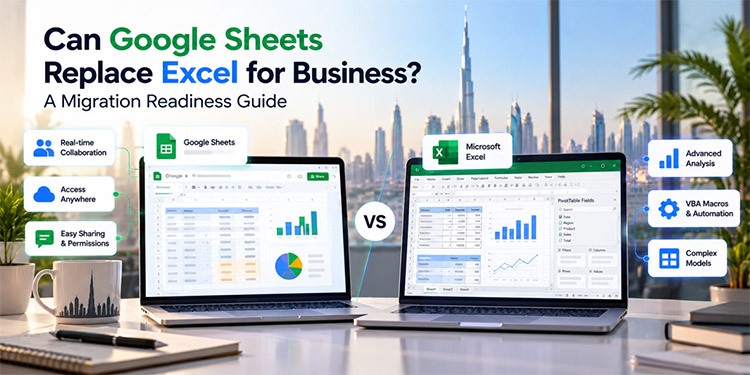
Google Sheets and Microsoft Excel are spreadsheet applications used to organise data, perform calculations, analyse information and prepare reports. The main difference is how they support collaboration, advanced analysis and existing business workflows.
Google Sheets is built around cloud-based collaboration. Multiple users can work on the same spreadsheet, share access and view changes in real time. Excel offers a broad set of spreadsheet capabilities, including advanced analytical tools and support for complex models, particularly in its desktop application.
For businesses, the decision should not be based only on which application has more features. It should be based on which application supports your team’s daily work efficiently.
Key differences at a glance
| Feature | Google Sheets | Microsoft Excel |
| Real-time collaboration | Built into the cloud-based workflow | Available through supported Microsoft 365 collaboration workflows |
| Access | Browser, mobile apps and supported offline options | Desktop, web and mobile apps, with capabilities varying by version |
| Formulas and functions | Supports many common formulas and functions | Extensive formula and analysis capabilities |
| Pivot tables and data analysis | Supports pivot tables and common analysis tasks | Offers advanced analysis options, depending on version and setup |
| Automation | Google Apps Script and supported integrations | VBA macros and other Microsoft automation tools |
| Large or complex workbooks | Suitable for many everyday business spreadsheets; performance depends on workbook complexity | Often preferred for complex, calculation-heavy or specialised models |
| Sharing and permissions | Google Drive sharing and access controls | Microsoft 365 sharing and file permissions |
| Ecosystem | Google Workspace apps and connected services | Microsoft 365 apps and connected services |
mportant: Features can differ between desktop, web and mobile versions, subscription plans and administrator settings. Test the exact workflows your business relies on before making a decision.
When Can Google Sheets Replace Excel?
For many everyday business tasks, Google Sheets can be a practical replacement for Excel. It is particularly useful when employees need to collaborate, update shared information and access reports from different locations.
Sales tracking and lead management
Sales teams often use spreadsheets to maintain lead lists, track follow-ups, record deal values and monitor sales targets. These activities can usually be managed in Google Sheets using filters, formulas, dropdown lists, conditional formatting and charts.
For example, a sales team can maintain a shared lead tracker with columns for lead source, contact details, assigned salesperson, status and next follow-up date.
Before migrating, check whether the tracker depends on Excel macros, external data connections or complex formulas.
Marketing campaign reporting
Marketing teams can use Google Sheets to organise campaign data, track budgets and prepare performance reports.
Common use cases include:
- Google Ads and Meta Ads performance tracking
- Monthly campaign budget monitoring
- SEO keyword tracking
- Website traffic and lead reporting
- Content calendars and campaign planning
Teams can also connect supported data sources or use integrations to reduce manual reporting. The suitability of a particular integration depends on the tools, permissions and reporting requirements involved.
Project management and operational tracking
Google Sheets can support project trackers, task lists, content calendars, inventory records and internal reporting.
Teams can share a single source of information rather than circulate multiple spreadsheet versions by email. Access permissions can help control who can view or edit a file.
However, a spreadsheet may not be the best solution for every workflow. If a process requires complex approvals, detailed audit trails or sophisticated task dependencies, a dedicated business application may be more suitable.
Budgeting and routine financial reporting
Google Sheets can handle many routine financial tasks, including expense trackers, monthly budgets, basic cash-flow summaries and departmental reports.
Businesses should distinguish between simple reporting and specialised financial modelling. If a workbook supports financial forecasting, complex scenarios, regulatory reporting or critical business decisions, it needs more extensive testing before migration.
When Should Your Business Keep Using Excel?
Google Sheets is not a complete replacement for every Excel workflow. Some businesses rely on features or integrations that may not transfer directly.
Excel VBA macros and automation
One of the most important migration considerations is VBA (Visual Basic for Applications).
Many Excel workbooks use VBA to automate repetitive tasks, generate reports, format files, process data or connect to other systems. Google Sheets does not run Excel VBA macros directly.
Google Sheets supports Google Apps Script, which can automate many tasks within Google Workspace. However, Apps Script is not a one-click replacement for VBA. Existing automation may need to be redesigned, rewritten and tested.
Before migrating a macro-enabled workbook, document:
- What each macro does
- When the macro runs
- Which files, applications or databases it accesses
- Whether it sends emails or generates reports
- Who maintains the automation
- What happens if the automation fails
If the workbook is critical to daily operations, have the automation assessed before committing to a migration.
Advanced financial models
Finance teams may use Excel for complex forecasting, valuation models, scenario analysis and large financial workbooks.
Although Google Sheets supports many advanced formulas and analytical functions, differences in functions, workbook structure, calculation behaviour and performance can affect results.
Test representative models using real business scenarios. Confirm that outputs, formulas, rounding, dates and financial calculations match the expected results before changing the team’s workflow.
Power Query, Power Pivot and specialised Excel features
Some Excel environments rely on tools such as Power Query, Power Pivot, specialised add-ins, external data connections or workbook-specific functionality.
These dependencies need individual assessment. A Google Sheets migration may require a different reporting method, a third-party integration, a redesigned data process or continued use of Excel for particular tasks.
Do not assume that an Excel workbook will behave identically after it is uploaded to Google Drive or opened in Google Sheets.
Large and calculation-heavy workbooks
Very large spreadsheets, workbooks with extensive formulas, complex data transformations or highly specialised calculations may perform differently in Google Sheets.
The correct approach is to test actual files rather than decide based on file size alone. Review calculation speed, refresh behaviour, usability and the time employees need to complete routine tasks.
3. Excel to Google Sheets Migration: What Can Go Wrong?
A migration involves more than transferring files. The goal is to preserve the business process supported by each spreadsheet.
Formula and formatting differences
Many common formulas work in both applications, but not every function, formula structure or calculation behaves identically.
Formatting, charts, conditional formatting, named ranges and data validation may also require review. Test formulas and output values, especially in spreadsheets used for finance, sales forecasting or management reporting.
Macros and linked workflows
An Excel file may depend on macros, external files, databases or other applications. Moving the file without reviewing those dependencies can interrupt the workflow.
Identify every external connection and automation before migration. Decide whether to rebuild, replace or retain each dependency.
Permissions and file ownership
Excel workbooks may be stored on individual computers, shared drives, OneDrive or SharePoint. When moving to Google Drive or Shared drives, businesses need to plan how access will work.
Review who owns each file, who needs edit access, whether external sharing is permitted and how confidential information should be protected. Recreate permissions carefully and test them with representative users.
Reporting and third-party integrations
Some spreadsheets connect to business intelligence tools, CRM platforms, accounting software or reporting systems. An integration that works with Excel may not work the same way with Google Sheets.
List these connections and validate them with the relevant software provider or technical team before migration.
Employee adoption
A successful migration also depends on how employees work. Users accustomed to Excel’s desktop interface may need help with Sheets, Drive sharing, comments, version history and collaboration.
Provide short training sessions, practical examples and a clear process for reporting issues. Prioritise teams whose daily work depends on complex spreadsheets.
4. Google Sheets Migration Readiness Checklist
Before moving from Excel to Google Sheets, classify your spreadsheets by business importance and technical complexity.
Use this checklist to begin your assessment:
- Identify where Excel files are currently stored.
- List the spreadsheet owners and teams using each file.
- Separate simple trackers from business-critical workbooks.
- Identify files containing VBA macros.
- Check for Power Query, Power Pivot, add-ins and external data connections.
- Review complex formulas, pivot tables, charts and named ranges.
- Identify links to other workbooks and business applications.
- Review file permissions, confidential data and external sharing.
- Test a representative sample of spreadsheets in Google Sheets.
- Compare formulas, calculations and reports against the original files.
- Rebuild and test any required automations.
- Train employees and obtain approval from the relevant business owners.
- Keep an agreed rollback or continuity plan for critical processes.
The checklist should result in a clear decision for every important workbook: migrate to Sheets, redesign the workflow, retain Excel for that use case, or replace the spreadsheet with a more suitable application.
A Practical Readiness Framework for Businesses
A simple classification helps teams prioritise migration work.
Low complexity: Usually suitable for Google Sheets
Examples include basic lead trackers, content calendars, routine task lists, simple budgets and shared status reports.
These files are often good candidates for an initial pilot, provided their formulas and permissions are tested.
Medium complexity: Requires testing
Examples include multi-sheet reports, pivot tables, dashboards, formula-heavy trackers and workbooks linked to external data.
Test the required functions, data refresh process, output accuracy and user experience before moving the file into everyday production.
High complexity: Requires a technical assessment
Examples include VBA-driven workbooks, advanced financial models, Power Query workflows, critical reporting systems and files connected to specialised applications.
These should be reviewed by the people who own the business process and the technical team responsible for the migration. Some may be suitable for redesign in Google Sheets, while others may need to remain in Excel.
Readiness is not an all-or-nothing decision. A business can use Google Sheets for collaborative reporting while retaining Excel for specialised workflows where that is the most practical choice.
How UAE Businesses Can Plan an Excel-to-Google Sheets Migration
For UAE organisations moving from Microsoft 365 to Google Workspace, spreadsheet readiness should be part of the wider migration plan.
Step 1: Audit existing Excel files
Identify important workbooks across finance, sales, HR, marketing and operations. Record the owner, purpose, storage location, complexity and business impact if the file stops working.
Step 2: Map dependencies
Document macros, formulas, external data connections, integrations and other workbooks that each file depends on. Involve the employees who use the files daily because some dependencies may not be documented.
Step 3: Select a pilot group
Choose a representative sample of low- and medium-complexity spreadsheets. Include real users and realistic tasks so you can identify compatibility and adoption issues early.
Step 4: Test and validate results
Compare the migrated spreadsheets with the original Excel files. Check formulas, totals, charts, permissions, data refreshes and any automated outputs.
For critical financial or operational files, obtain sign-off from the relevant business owner before using the migrated version in production.
Step 5: Resolve exceptions
Decide how to handle each workbook that does not migrate cleanly. Possible options include rebuilding an automation, changing the reporting workflow, retaining Excel for a specific task or using a suitable alternative application.
Step 6: Train users and roll out gradually
Explain the differences between Excel and Google Sheets, including sharing, collaboration, version history and access controls. Roll out in manageable phases and provide support during the transition.
Step 7: Review after migration
Monitor user feedback, file performance, reporting accuracy and outstanding technical issues. Keep the migration inventory updated until all critical workflows have been validated.
Should Your Business Move to Google Sheets or Keep Excel?
The best choice depends on your business requirements rather than a general claim that one tool is better than the other.
Google Sheets may be a strong fit if your teams need cloud-based collaboration, shared reporting, accessible trackers and closer integration with Google Workspace.
Excel may remain necessary for specialised workflows that depend on VBA, particular add-ins, advanced data tools or complex models. Some businesses will benefit from using both applications for different purposes.
Before making the decision, consider these questions:
- How many business-critical spreadsheets do we use?
- Which workbooks contain macros or advanced data connections?
- Can our most important formulas and reports be validated in Sheets?
- What would happen if a critical workbook became unavailable?
- Which teams need additional training?
- What is the cost of rebuilding, retaining or replacing existing workflows?
The answers will help you estimate the effort involved and build a realistic migration plan.
How XL Technologies Can Help with Your Google Workspace Migration
Moving from Microsoft 365 to Google Workspace requires more than transferring email and documents. Businesses should also assess spreadsheets, automation, file permissions and reporting dependencies to avoid unnecessary disruption.
XL Technologies can help UAE businesses assess their existing Microsoft 365 environment, plan the migration to Google Workspace, identify spreadsheet compatibility concerns and coordinate the transition based on business requirements.
Our approach can include:
- Microsoft 365 and Excel dependency assessment
- Google Workspace migration planning
- Google Drive and Shared drive organisation
- Review of spreadsheet formulas and automation requirements
- User onboarding and collaboration guidance
- Post-migration validation and support
Planning a move from Microsoft 365 to Google Workspace? Contact XL Technologies to discuss your current Excel workflows and identify which spreadsheets are ready for Google Sheets, which require additional testing and which may need a different solution.
Frequently Asked Questions
1. Can Google Sheets completely replace Microsoft Excel?
Not for every business. Google Sheets can handle many everyday spreadsheet tasks, but Excel may still be needed for workflows that depend on VBA macros, certain advanced data tools, specialised add-ins or complex models.
2. Can I convert Excel files to Google Sheets?
Many Excel files can be opened or converted for use in Google Sheets. However, conversion does not guarantee that every formula, macro, formatting choice or external connection will work identically. Test important files before relying on them.
3. Do Excel VBA macros work in Google Sheets?
No. Google Sheets does not execute Excel VBA macros directly. Some workflows can be rebuilt using Google Apps Script or other tools, but the replacement may require development and testing.
4. Is Google Sheets suitable for business financial reports?
It can be suitable for routine budgets, expense trackers and many standard financial reports. Complex financial models or critical reporting processes should be tested carefully before migration.
5. What happens to Excel formulas during migration?
Many common formulas are supported in Google Sheets, but some functions and workbook behaviours differ. Compare calculations and outputs against the original workbook, especially for business-critical reports.
6. Can businesses use Excel and Google Sheets together?
Yes. A business can use Google Sheets for collaborative workflows while continuing to use Excel where specific features are required. The team should define where each file is maintained to avoid confusion and inconsistent versions.
7. How long does an Excel-to-Google Sheets migration take?
The time required depends on the number of files, workbook complexity, automation dependencies, integrations, permissions and testing requirements. A business with simple trackers will usually need less preparation than one with many interconnected, macro-enabled workbooks.
8. How can UAE businesses prepare for a Microsoft 365 to Google Workspace migration?
Start by auditing existing Excel files, documenting macros and external connections, testing representative spreadsheets, reviewing access permissions and training users. Include spreadsheet readiness in the wider Google Workspace migration plan.