
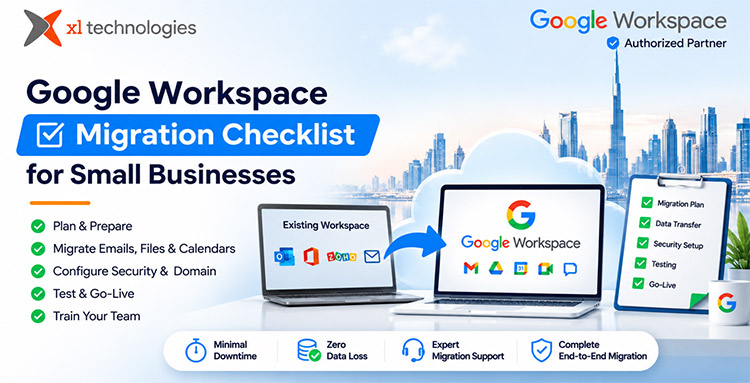
Google Workspace Migration Checklist for Small Businesses
By Divya – Support Engineer and Google Cloud Certified Digital Leader with 2+ years of experience in Google Workspace administration at XL Technologies. Her expertise includes user account creation, permission management, email configuration, security, and ticket handling. With proven skills, she ensures smooth, secure, and efficient Workspace operations for clients. At XL Technologies, Divya plays a key role in driving digital transformation through Google Cloud solutions. She is passionate about helping businesses maximize productivity and collaboration with Google Workspace.
- Why Small Businesses Need a Google Workspace Migration Plan
- Google Workspace Migration Checklist: Before You Begin
- Google Workspace Data Migration Checklist
- Email DNS and Security Configuration
- Google Workspace Migration Testing and Go-Live
- Post-Migration Verification Checklist
- Common Google Workspace Migration Mistakes to Avoid
- Conclusion
Moving your business to Google Workspace can simplify email management, improve team collaboration, and give employees secure access to files from anywhere. For small businesses in the UAE, a successful migration also means protecting customer communications, maintaining business continuity, and ensuring that employees can resume work without unnecessary disruption.
Whether you are moving from Microsoft 365, Zoho, cPanel email, or an on-premises Exchange server, careful planning makes the transition smoother. This Google Workspace migration checklist covers preparation, data migration, email configuration, security, testing, and employee onboarding, helping your business move confidently to the cloud.
Why Small Businesses Need a Google Workspace Migration Plan
Google Workspace brings Gmail, Google Drive, Google Calendar, Google Meet, Docs, Sheets, and other productivity tools into one integrated platform. However, migrating to a new environment involves more than transferring email messages.
A structured migration helps businesses:
- Preserve important emails, contacts, calendars, and files.
- Minimize interruptions to customer communication.
- Maintain access permissions and business-critical information.
- Strengthen account security and administrative control.
- Prepare employees to use their new tools effectively.
Google recommends preparing users, organizing existing email, and scheduling training before switching to Workspace.
Google Workspace Migration Checklist: Before You Begin
1. Audit Your Existing IT Environment
Start by documenting your current email and collaboration systems.
- List all employees, contractors, and active email accounts.
- Identify shared mailboxes, distribution lists, aliases, and group addresses.
- Record mailbox sizes and storage requirements.
- Identify calendars, contacts, shared folders, and important files.
- Review your current email provider and hosting configuration.
- Identify third-party applications that send emails using your domain.
- Confirm access to your domain registrar and DNS management account.
For UAE businesses, include departments such as sales, finance, HR, and customer support in your inventory. This helps ensure that shared addresses such as [email protected] and [email protected] continue working after migration.
2. Choose the Right Google Workspace Plan
Select a subscription based on your business requirements.
- Business Starter: Suitable for smaller teams needing professional email and essential collaboration tools.
- Business Standard: Offers additional storage and collaboration capabilities for growing businesses.
- Business Plus: Provides enhanced security, management, and compliance features.
- Enterprise: Supports organizations with more advanced security, governance, and administrative requirements.
Consider your storage needs, security policies, number of users, and future growth before purchasing licenses.
XL Technologies can help UAE businesses compare Google Workspace plans and select an appropriate subscription.
3. Prepare Your Domain and Google Workspace Accounts
Before transferring data:
- Create your Google Workspace organization.
- Verify ownership of your business domain.
- Create user accounts and assign licenses.
- Configure aliases and group addresses.
- Assign administrator roles carefully.
- Confirm that users can sign in to their new accounts.
- Keep existing email services active during the transition.
Avoid deleting old accounts or canceling your existing email subscription before confirming that all required data has been migrated.
Google Workspace Data Migration Checklist
4. Migrate Emails, Contacts, and Calendars
Email is often the most business-critical part of a migration.
- Select the appropriate migration method for your source platform.
- Migrate historical email messages and folders.
- Transfer contacts and address books.
- Migrate calendar events and recurring meetings.
- Check shared mailbox and delegation requirements.
- Verify that important attachments and message dates are preserved.
- Identify any unsupported items that require manual handling.
Google provides migration and data import tools for supported source systems. The best approach depends on your current platform, data volume, and migration requirements.
5. Organize and Migrate Business Files
Google Drive provides centralized cloud storage and collaboration.
- Inventory files stored on local computers, servers, and cloud platforms.
- Identify duplicate, outdated, or unnecessary files.
- Decide which files belong in individual My Drive accounts and which belong in shared drives.
- Map existing folders to their new destinations.
- Review ownership and sharing permissions.
- Migrate important documents, spreadsheets, presentations, and PDFs.
- Test access to migrated files using employee accounts.
For small businesses, shared drives can help keep company-owned documents accessible when employees change roles or leave the organization.
Email DNS and Security Configuration
6. Configure Your Domain's Email Records
Once your Workspace accounts are ready, configure the DNS records required for email delivery.
- Add Google’s MX records to route incoming email to Gmail.
- Configure SPF to authorize legitimate sending services.
- Enable DKIM signing for your domain.
- Publish a DMARC policy to help protect against email spoofing.
- Verify DNS changes and test inbound and outbound email.
- Check that website forms, CRM systems, and other applications can still send email.
Important: SPF, DKIM, and DMARC serve different purposes. Changing MX records alone does not complete email authentication.
7. Strengthen Security and Administration
Before employees begin using Workspace:
- Enforce two-step verification for user accounts.
- Review administrator privileges and recovery options.
- Configure password and account security policies.
- Review external file-sharing permissions.
- Set up mobile device management where appropriate.
- Configure spam, phishing, and malware protections.
- Establish procedures for account recovery and employee offboarding.
Businesses handling customer or employee information should also review applicable UAE privacy and data protection requirements.
Google Workspace Migration Testing and Go-Live
8. Run a Pilot Migration
Test the migration with a small group before moving everyone.
- Select employees from different departments.
- Test email, contacts, calendars, and file access.
- Verify permissions and shared resources.
- Test mobile access and desktop applications.
- Document issues and resolve them before the full migration.
A pilot helps uncover problems while the impact is limited.
9. Plan Your Cutover
Choose a migration date that minimizes business disruption.
- Notify employees and communicate the migration schedule.
- Confirm administrator access to both environments.
- Complete the initial data migration.
- Change MX records at the agreed cutover time.
- Monitor incoming and outgoing email.
- Perform a final incremental migration if required.
- Keep the previous email environment available during the transition.
Allow time for DNS propagation and remember that some senders may temporarily use cached routing information.
10. Train Employees and Provide Support
A successful migration includes helping employees adapt to their new tools.
- Explain how to access Gmail, Drive, Calendar, and Meet.
- Provide instructions for mobile device setup.
- Demonstrate file sharing and collaboration.
- Explain how to find migrated emails and calendar events.
- Provide support contacts for migration-related issues.
- Schedule follow-up training for employees who need assistance.
Post-Migration Verification Checklist
After go-live, verify that the new environment is operating correctly.
| Area | Verification |
| Send and receive internal and external messages | |
| Contacts | Confirm important contacts are available |
| Calendar | Check meetings, invitations, and recurring events |
| Drive | Verify files, ownership, and sharing permissions |
| Security | Confirm 2-step verification and admin policies |
| Applications | Test website forms and connected business tools |
| Users | Confirm employees can sign in and work normally |
Keep the old system available until the migration has been validated and any remaining data or operational dependencies have been addressed.
Common Google Workspace Migration Mistakes to Avoid
Small businesses can reduce migration risks by avoiding these common mistakes:
- Skipping the inventory: Missing accounts or shared mailboxes can lead to lost business communications.
- Changing DNS too early: Incomplete preparation can interrupt email delivery.
- Ignoring file permissions: Migrated documents may become inaccessible or unintentionally exposed.
- Canceling the old service prematurely: This can complicate recovery and final data transfers.
- Skipping employee training: Users may struggle with unfamiliar workflows and tools.
- Assuming everything migrates automatically: Some permissions, application integrations, or specialized data may require manual attention.
Conclusion
As an authorized Google Workspace partner in the UAE, XL Technologies helps small businesses migrate their existing email, files, calendars, and business data to Google Workspace with minimal downtime and a strong focus on data integrity. Our expert team manages the complete migration process, from initial planning and configuration to data transfer, security setup, and post-migration support, ensuring a smooth and reliable transition.
With XL Technologies handling your migration, you can focus on growing your business while we take care of the technical complexities. Our goal is to deliver a seamless migration with zero data loss and minimal disruption to your daily operations, backed by expert guidance and dedicated local support every step of the way.
Frequently Asked Questions
How long does a Google Workspace migration take?
The timeline depends on the number of users, data volume, source platform, and migration complexity. A small business with a straightforward email migration may complete the main transition within a day, while larger or more complex migrations may require additional planning and testing.
Can I migrate from Microsoft 365 or Zoho to Google Workspace?
Yes. Google Workspace supports migration from several common email and collaboration platforms. The exact tools and supported data types depend on your source environment.
Will my business email stop working during migration?
A properly planned migration can minimize disruption. However, DNS propagation, provider behavior, and migration complexity can affect delivery. Testing and maintaining the previous environment during cutover help reduce risk.
Can I migrate emails, contacts, calendars, and files together?
These data types can be migrated using supported tools and workflows, but they may require separate migration steps depending on the source platform.
Why use a Google Workspace partner in the UAE?
A local partner can assist with licensing, domain configuration, migration planning, security setup, employee training, and ongoing support. UAE businesses may also benefit from local assistance and UAE invoicing.