
Google Workspace Studio Not Showing Google Calendar? What Admins Should Check
By Divya – Support Engineer and Google Cloud Certified Digital Leader with 2+ years of experience in Google Workspace administration at XL Technologies. Her expertise includes user account creation, permission management, email configuration, security, and ticket handling. With proven skills, she ensures smooth, secure, and efficient Workspace operations for clients. At XL Technologies, Divya plays a key role in driving digital transformation through Google Cloud solutions. She is passionate about helping businesses maximize productivity and collaboration with Google Workspace.
- What Is Google Workspace Studio?
- Why Is Google Calendar Missing from the Workspace Studio Add Step Menu?
- Step-by-Step Troubleshooting: Google Calendar Not Appearing in Workspace Studio
- What If Google Calendar Is Still Missing After Enabling All Permissions?
- How Can Businesses Prevent Google Workspace Integration Problems?
- Conclusion
Google Workspace Studio helps businesses automate repetitive tasks across Google Workspace applications using AI-powered workflows. Teams can use it to streamline activities involving Gmail, Google Drive, Google Sheets, Google Calendar, and other supported services.
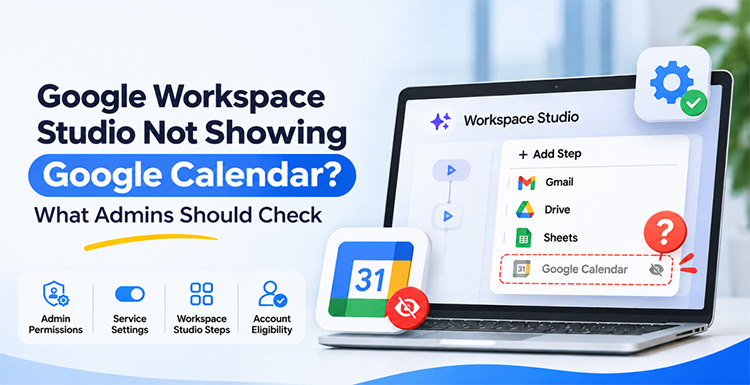
However, some users encounter a frustrating issue: Google Calendar does not appear in the Workspace Studio “+ Add Step” menu, even when they believe they have enabled the necessary permissions.
This can prevent employees from creating calendar-related automations and interrupt workflows that depend on meeting schedules, reminders, and event management.
If Google Calendar is missing from your Workspace Studio environment, the issue may be related to administrator restrictions, application access settings, account eligibility, or feature availability.
In this guide, we explain why Google Calendar might not appear in Workspace Studio and what users and Google Workspace administrators can check to troubleshoot the problem.
What Is Google Workspace Studio?
Google Workspace Studio is an automation environment that helps users create workflows across Google Workspace applications.
Instead of manually performing repetitive tasks, users can build flows that respond to specific triggers and perform actions across supported services.
For example, businesses can use Workspace Studio to:
- Automate repetitive email-related tasks.
- Organize information from incoming messages.
- Create or update supported Google Drive content.
- Work with Google Calendar events and meeting-related information.
- Automate selected activities involving Google Sheets.
- Use Gemini to process information within supported workflows.
For businesses, these automations can reduce manual work and help employees manage everyday activities more efficiently.
Why Is Google Calendar Missing from the Workspace Studio Add Step Menu?
There are several possible reasons why Google Calendar may not appear when you try to add a step to a Workspace Studio flow.
1. Google Calendar Access Is Restricted by Your Administrator
One possible reason is that your Google Workspace administrator has restricted access to Calendar or its related Workspace Studio steps.
Google Workspace administrators can control which applications and features employees can use within Workspace Studio.
For example, an administrator may allow Gmail and Google Drive steps while restricting Calendar-related functionality.
What to check:
- Confirm that Google Calendar is enabled for your account.
- Check whether your organizational unit has different service restrictions.
- Ask your administrator whether Calendar steps are allowed in Workspace Studio.
- Review the Workspace Studio administrator settings.
If the administrator has disabled the relevant application or step, users may not see the expected functionality.
2. Workspace Studio Steps Are Disabled in the Admin Console
Google provides administrators with controls to manage which Workspace Studio steps employees can use.
If Calendar has been disabled under these controls, users may be unable to access Calendar-related automation options.
How administrators can check:
- Sign in to the Google Admin Console.
- Navigate to Apps.
- Select Google Workspace.
- Open Workspace Studio.
- Select Steps & features.
- Find Google Calendar in the application list.
- Check whether the relevant steps and features are enabled.
- Save any necessary changes.
Administrators can configure these settings for the organization, organizational units, or groups, depending on their requirements.
Important: Enabling Calendar steps in Workspace Studio and enabling the Calendar service itself are separate checks. Both may need to be reviewed.
3. Google Calendar Is Disabled for the User's Organizational Unit
Google Workspace administrators can enable or disable individual services for different organizational units and access groups.
For example, employees in the sales department may have access to Google Calendar, while another organizational unit may have different service restrictions.
If Calendar is disabled for the affected user’s organizational unit, related functionality may not be available as expected.
How to check Calendar service access:
- Open the Google Admin Console.
- Navigate to Apps.
- Select Google Workspace.
- Open Calendar.
- Select Service status.
- Choose the affected organizational unit.
- Check whether Calendar is enabled.
- Enable the service if it is disabled and appropriate for that group.
Administrators should also review any access-group settings that affect the user.
Changes to Calendar service access can take up to 24 hours, although they often apply sooner.
4. Google Workspace Smart Features Are Turned Off
Workspace Studio relies on Google Workspace features and permissions to provide its automation capabilities.
If Smart features in Google Workspace are disabled, users may experience problems accessing Workspace Studio or using certain functionality.
How to check Smart features:
- Open Gmail, Google Calendar, or another supported Google Workspace application.
- Click Settings.
- Select See all settings.
- Open the General tab.
- Find Google Workspace smart features.
- Select Manage Workspace smart feature settings.
- Enable Smart features in Google Workspace.
- Save the changes.
Google also recommends enabling Smart features in other Google products for the best experience.
If the settings are managed by your organization, contact your administrator.
5. API Access and Security Restrictions Are Blocking Workspace Studio
Some organizations apply strict security policies to control how applications access company data.
These restrictions can affect Workspace Studio’s ability to interact with Google services.
For example, administrators may configure API access controls, application allowlists, or Context-Aware Access policies that restrict access to certain services.
What administrators should review:
- Google Workspace API controls.
- Application access restrictions.
- Custom App Access settings.
- Context-Aware Access policies.
- Workspace Studio application permissions.
- Restrictions applied to the affected organizational unit.
Google’s current administrator documentation also identifies specific Workspace Studio applications, including Google Calendar for Workspace Studio, that may need to be considered when configuring Context-Aware Access restrictions.
Do not disable security controls indiscriminately. Review the relevant policies and make only the changes required to allow approved Workspace Studio functionality.
6. Your Google Workspace Account May Not Meet the Eligibility Requirements
Not every Google account has identical access to Workspace Studio.
Access depends on the account type, eligible subscription or add-on, and applicable feature availability.
For work and school accounts, eligible editions include supported Business, Enterprise, and Education editions, subject to Google’s current requirements.
Administrators should also confirm that Gemini is enabled where required.
What to check:
- Confirm your Google Workspace subscription edition.
- Check whether your account is eligible for Workspace Studio.
- Confirm that Gemini is enabled by your administrator.
- Review any account-specific feature restrictions.
- Check whether the required functionality is available to your organization.
If you use a personal Google account, different access requirements may apply.
Step-by-Step Troubleshooting: Google Calendar Not Appearing in Workspace Studio
If Google Calendar is missing from the “+ Add Step” menu, follow this troubleshooting sequence.
Step 1: Confirm That You Are Using the Correct Account
Make sure you are signed in using the correct Google Workspace account.
If you manage multiple Google accounts, you may accidentally open Workspace Studio using a personal account or another business account with different permissions.
Step 2: Check Google Calendar Availability
Open Google Calendar and confirm that you can access the service normally.
If Calendar is unavailable, contact your administrator to check the service status for your account or organizational unit.
Step 3: Review Workspace Studio Settings
Ask your Google Workspace administrator to check:
- Apps → Google Workspace → Workspace Studio.
- Steps & features.
- Google Calendar-related settings.
Confirm that the required functionality is enabled for the affected users.
Step 4: Review Application Access Controls
If the relevant steps are enabled but the issue continues, review API controls, Custom App Access, and Context-Aware Access policies.
Check whether organizational security restrictions are blocking Workspace Studio from accessing Calendar.
Step 5: Check Smart Features and Gemini Access
Confirm that Smart features in Google Workspace are enabled and that Gemini is available to the affected account where required.
Step 6: Recheck Workspace Studio
After the administrator changes the relevant settings, sign out and sign back in if necessary.
Open Workspace Studio again and check the available steps.
If Calendar still does not appear, review the official troubleshooting documentation or contact Google Workspace support.
What If Google Calendar Is Still Missing After Enabling All Permissions?
Sometimes the issue continues even after an administrator reviews the available settings.
In these situations, avoid assuming that the problem is caused by a single permission.
Other possible explanations include:
- A feature rollout that has not reached the account.
- An account or subscription eligibility limitation.
- An application access restriction that has not been identified.
- A temporary Workspace Studio issue.
- A product bug affecting a specific workflow or account.
Google Workspace Studio is actively developed, and its available functionality can change as Google introduces updates.
If the issue persists, administrators should document the problem and contact Google Workspace support.
Information to Collect Before Contacting Support
| Information | Why it matters |
| Google Workspace edition | Helps establish account eligibility |
| Affected user account | Identifies who experiences the issue |
| Organizational unit | Helps identify inherited restrictions |
| Workspace Studio settings | Shows which steps are enabled |
| Calendar service status | Confirms whether Calendar is available |
| Screenshots of the missing step | Helps demonstrate the problem |
| Date and time of the issue | Helps with troubleshooting |
| Recent administrator changes | Helps identify possible configuration conflicts |
Providing these details can help support teams investigate the issue more efficiently.
How Can Businesses Prevent Google Workspace Integration Problems?
Businesses increasingly depend on connected applications and automated workflows. Incorrect administrator settings can prevent employees from accessing features they need.
To reduce configuration-related problems, administrators should follow these practices.
1. Review Workspace Studio Settings Before Deployment
Before introducing automation across the organization, check which Workspace Studio features employees are allowed to use.
2. Organize Users into Appropriate Organizational Units
Use organizational units and access groups to manage application permissions according to business requirements.
3. Review Security Policies Regularly
Check API access restrictions, application permissions, and Context-Aware Access policies whenever employees report integration problems.
4. Test Workflows Before Organization-Wide Deployment
Create test workflows using the relevant applications before rolling them out to larger teams.
5. Monitor Feature Availability and Updates
Google Workspace regularly introduces product changes. Administrators should review official release notes and support documentation to understand new functionality and configuration requirements.
Conclusion
XL Technologies is an authorised Google Workspace partner helping businesses with Google Workspace setup, administration, and technical support. Our team understands the challenges businesses face when configuring applications, managing permissions, and connecting Workspace services.
If Google Calendar is missing from Workspace Studio or your team is experiencing integration issues, XL Technologies can help identify configuration problems, review administrator settings, and provide practical solutions to make your Google Workspace environment work effectively.
Frequently Asked Questions
1. Why is Google Calendar not showing in Google Workspace Studio?
Possible reasons include administrator restrictions, disabled Calendar service access, Workspace Studio step settings, Smart features restrictions, or account eligibility limitations.
2. Can a Google Workspace administrator enable Calendar steps?
Yes. Administrators can manage available Workspace Studio steps through Apps → Google Workspace → Workspace Studio → Steps & features.
3. Does enabling Google Calendar automatically enable Calendar steps in Workspace Studio?
Not necessarily. Calendar service access and Workspace Studio step availability are separate settings. Administrators should review both.
4. Can organizational unit settings affect Workspace Studio?
Yes. Google Workspace administrators can apply different application and feature access settings to organizational units and groups. Users may therefore experience different functionality within the same organization.
5. Do Smart features affect Workspace Studio?
Yes. Google identifies Smart features in Google Workspace as an important access requirement for Workspace Studio. If they are disabled, some users may experience access or functionality issues.
6. What should I do if Google Calendar is still missing after changing the settings?
Review application access restrictions, account eligibility, and Workspace Studio settings. If everything appears correct, document the issue and contact Google Workspace support.
7. Is Google Workspace Studio available on all Google Workspace plans?
No. Workspace Studio access depends on supported Workspace editions or eligible add-ons, account type, and Google’s current availability requirements.