
Google Workspace MX Record Problems: Why Your Business Emails Are Not Working
By Divya – Support Engineer and Google Cloud Certified Digital Leader with 2+ years of experience in Google Workspace administration at XL Technologies. Her expertise includes user account creation, permission management, email configuration, security, and ticket handling. With proven skills, she ensures smooth, secure, and efficient Workspace operations for clients. At XL Technologies, Divya plays a key role in driving digital transformation through Google Cloud solutions. She is passionate about helping businesses maximize productivity and collaboration with Google Workspace.
- What Are MX Records in Google Workspace?
- Why Are Your Business Emails Not Working After Setting Up Google Workspace?
- How to Set Up Google Workspace MX Records Correctly
- Understanding MX, SPF, DKIM, and DMARC Records
- How to Check Whether Your Google Workspace MX Records Are Correct
- What to Do If Google Workspace Emails Are Still Not Working
- Google Workspace MX Record Checklist for Businesses
- Conclusion
Have you recently moved your business email to Google Workspace, but your emails are not reaching Gmail? Are customers receiving bounce-back messages, or are incoming emails still arriving in your old cPanel or webmail account?
These problems can often be related to incorrect DNS configuration, especially Mail Exchange (MX) records.
MX records tell other mail servers where to deliver emails sent to your business domain. If these records are missing, incorrect, or pointing to an old email provider, your business may experience email delivery problems.
For businesses migrating from cPanel webmail, Microsoft 365, or another email hosting provider, configuring MX records correctly is an essential part of setting up Google Workspace.
In this guide, we explain how Google Workspace MX records work, why business emails may stop working, how to configure the correct records, and what administrators should check when troubleshooting email delivery problems.
What Are MX Records in Google Workspace?
MX stands for Mail Exchange. An MX record is a DNS record that tells sending mail servers which email servers are responsible for receiving messages for your domain.
For example, suppose your business uses the domain yourcompany.com and has employee email addresses such as:
When a customer sends an email to one of these addresses, the sending mail server checks the MX records published for yourcompany.com.
Those records identify where the incoming message should be delivered.
If your business uses Google Workspace, your domain’s MX configuration must direct incoming email to Google’s mail servers.
Important: MX records primarily control incoming email delivery. They are different from SPF, DKIM, and DMARC records, which help authenticate and protect email sending.
Why Are Your Business Emails Not Working After Setting Up Google Workspace?
Several DNS and account configuration issues can prevent your business emails from working correctly.
1. Incorrect Google Workspace MX Records
One of the most common setup problems is entering an incorrect MX record.
For example, a business may accidentally enter an incorrect destination, misspell the server address, or use an incorrect priority value.
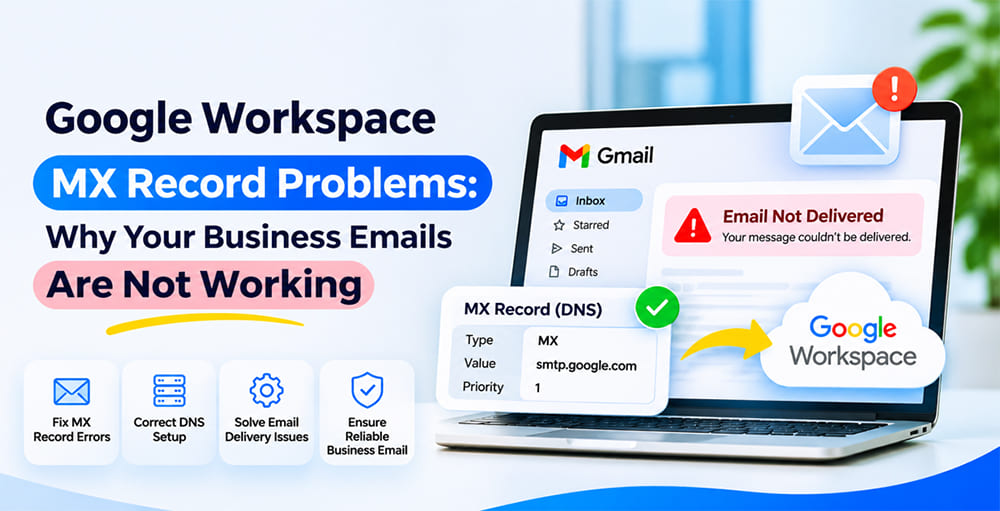
Google’s current standard MX record for new Google Workspace setups is:
| Record field | Value |
| Type | MX |
| Host / Name | @ or blank, depending on the provider |
| Priority | 1 |
| Destination / Value | smtp.google.com |
| TTL | Provider default or 1 |
Some domain providers require a period at the end of the destination, such as smtp.google.com.. Follow the format required by your DNS provider.
Google also continues to support legacy MX records beginning with ASPMX for existing configurations. If your existing email setup is working correctly, you do not need to replace those records just because Google has introduced a newer format.
How to fix it:
- Sign in to your domain registrar or DNS hosting provider.
- Open your domain’s DNS management section.
- Find the existing MX records.
- Check whether the destination matches Google’s required configuration.
- Correct any incorrect entries.
- Save the changes.
- Allow time for DNS propagation.
Avoid changing working MX records unnecessarily. Always confirm the correct configuration for your account before making changes.
2. Old MX Records Are Still Pointing to Your Previous Email Provider
This issue commonly occurs when businesses migrate from another email hosting service to Google Workspace.
For example, your company may previously have used cPanel webmail or another hosting provider. When you move to Google Workspace, the old MX records may remain in your DNS settings.
As a result, incoming emails may continue going to the previous email server instead of Gmail.
Example:
Your business previously used:
- cPanel email hosting
- Microsoft 365
- Another third-party email provider
After moving to Google Workspace, your domain still contains MX records pointing to the old provider.
This can create inconsistent email delivery, particularly when multiple mail servers are configured unintentionally.
How to fix it:
- Open your domain’s DNS management panel.
- Review all existing MX records.
- Identify records belonging to your previous email provider.
- Confirm that Google Workspace is now your intended email destination.
- Remove obsolete or conflicting MX records when appropriate.
- Add the correct Google Workspace MX configuration.
- Test incoming email from external accounts.
Do not remove old MX records before confirming that your migration and email-routing plan is ready. If you are using a deliberate split-delivery or dual-delivery configuration, additional routing settings may be required.
3. DNS Changes Have Not Fully Propagated
After updating MX records, your emails may not start working immediately.
DNS propagation is the process through which updated DNS information becomes available across different DNS resolvers.
For example, you update your domain’s MX records to point to Google Workspace. However, some mail servers may temporarily continue using previously cached DNS information.
This can result in:
- Emails arriving at the old provider.
- Delayed incoming messages.
- Inconsistent delivery between different senders.
- Temporary email bounce-back messages.
Google states that MX record changes can take up to 72 hours to be recognised.
How to fix it:
- Confirm that your MX records were saved correctly.
- Check the published DNS records using an MX lookup tool.
- Wait for DNS propagation.
- Test email delivery periodically.
- Avoid repeatedly changing DNS records while waiting for the previous changes to take effect.
If emails are still not working after the expected propagation period, investigate the other possible causes in this guide.
4. Gmail Has Not Been Activated in Google Admin Console
Adding the correct MX records is not the only step required to configure business email.
You must also activate Gmail for your domain in the Google Admin Console.
Some businesses complete the DNS configuration but overlook the Gmail activation step.
How to check:
- Sign in to the Google Admin Console.
- Navigate to Account.
- Open Domains.
- Select Manage domains.
- Find the domain you want to configure.
- Check whether Gmail is activated.
- Follow the available activation instructions if it is not.
You need the appropriate domain settings administrator privileges to manage this configuration.
5. Your Domain Ownership Is Not Verified
Google Workspace requires domain ownership verification before you can fully configure services for your business domain.
During setup, Google provides a verification record, commonly a TXT record, that must be added to your domain’s DNS settings.
If the domain verification process is incomplete, Gmail activation may not proceed as expected.
How to fix it:
- Sign in to Google Admin Console.
- Open the domain setup process.
- Copy the TXT verification record provided by Google.
- Open your domain’s DNS settings.
- Add the TXT record exactly as instructed.
- Save the DNS changes.
- Return to Google Admin Console and complete verification.
Do not confuse the domain verification TXT record with the MX record. They serve different purposes.
6. Your Business Email Accounts Have Not Been Created
Another common migration mistake is changing MX records before creating all the required Google Workspace user accounts.
For example, a business changes its MX records to Google but has not yet created accounts for:
If an incoming message is addressed to an account that does not exist or is not configured to receive it, delivery may fail.
How to fix it:
Before changing MX records:
- List all employee email accounts.
- Create the required Google Workspace users.
- Configure email aliases and Google Groups.
- Check the spelling of each email address.
- Confirm that the accounts are ready to receive messages.
Google recommends creating user accounts and relevant aliases before changing MX records to help avoid email bounces during migration.
7. Your Previous Email Hosting Configuration Is Still Active
Some businesses use multiple email services during migration.
For example, your domain may still have:
- Old cPanel email hosting.
- Google Workspace Gmail.
- Third-party email routing services.
- Custom mail gateways.
If the MX records and routing configuration are not planned correctly, incoming messages may reach an unexpected destination.
How to fix it:
Review your complete email-routing configuration.
Check whether your business needs a single email provider or a more complex setup involving multiple servers.
If you intend to move completely to Google Workspace, make sure the domain’s MX records and related routing settings reflect that decision.
If you need to maintain multiple mail systems, consult an administrator before changing the records.
How to Set Up Google Workspace MX Records Correctly
If you are setting up Google Workspace for the first time, follow these steps to configure the required MX record.
Step 1: Access Your Domain DNS Settings
Sign in to the platform where your domain’s DNS records are managed.
Depending on your provider, this may be:
- GoDaddy
- Namecheap
- Cloudflare
- Hostinger
- cPanel
- AWS Route 53
- Another domain registrar or DNS hosting provider
Open the DNS management section for your business domain.
Remember that your domain registrar and DNS hosting provider may be different companies. Make changes wherever your domain’s authoritative DNS is managed.
Step 2: Locate Existing MX Records
Find the MX record section.
You may see existing records pointing to your previous email hosting provider.
Review these records before making changes. If you are moving completely to Google Workspace, obsolete or conflicting MX records may need to be removed.
Step 3: Add Google's MX Record
For a new Google Workspace setup, Google currently specifies the following standard MX record:
| Field | Configuration |
| Type | MX |
| Name | @ or blank |
| Priority | 1 |
| Destination | smtp.google.com |
| TTL | Default or 1 |
Your DNS provider may display the fields using different names. Enter the destination and priority according to its instructions.
Step 4: Save Your DNS Configuration
After entering the correct details:
- Review the MX record destination.
- Check the priority value.
- Confirm the host or name field.
- Save the configuration.
- Check that no unwanted MX records remain.
Step 5: Activate Gmail
After updating your DNS records, return to Google Admin Console and complete Gmail activation for your domain.
Follow the instructions displayed in the Admin Console.
Step 6: Test Email Delivery
Send test emails from an external email account to your business email address.
Then reply from Gmail to confirm outgoing email works as expected.
Check that:
- Incoming emails reach the correct account.
- Outgoing emails reach external recipients.
- Attachments are delivered correctly.
- Employee accounts can send and receive messages.
Understanding MX, SPF, DKIM, and DMARC Records
Businesses sometimes assume that adding MX records is enough to complete their Google Workspace email configuration.
However, different DNS records serve different purposes.
| DNS Record | Main Purpose |
| MX | Directs incoming email to the correct mail server |
| SPF | Identifies which servers are authorised to send email for your domain |
| DKIM | Adds a cryptographic signature to help verify email authenticity |
| DMARC | Defines how receiving servers should handle messages that fail authentication checks and provides reporting options |
What Is SPF?
Sender Policy Framework (SPF) helps receiving email servers determine whether a sending server is authorised to send messages using your domain.
Without an appropriate SPF configuration, your business emails may face authentication problems.
Your SPF record should reflect all legitimate services that send email on behalf of your domain. Do not create multiple separate SPF records for the same domain.
What Is DKIM?
DomainKeys Identified Mail (DKIM) adds a digital signature to outgoing messages.
Receiving servers can use this signature to check whether the message’s signed content and associated domain information pass DKIM verification.
Google Workspace administrators can generate DKIM authentication settings in the Admin Console and publish the required DNS record.
What Is DMARC?
Domain-based Message Authentication, Reporting, and Conformance (DMARC) works with SPF and DKIM.
It allows domain owners to publish a policy that tells receiving mail servers how to handle messages that fail DMARC authentication.
Businesses should configure DMARC carefully, starting with a monitoring approach where appropriate before moving to stricter enforcement.
Remember: MX records help route incoming messages, while SPF, DKIM, and DMARC support email authentication. Configuring all four correctly helps establish a more reliable business email environment.
How to Check Whether Your Google Workspace MX Records Are Correct
After updating DNS records, you should verify that the changes are publicly visible.
Method 1: Use Google Admin Toolbox Dig
Google provides the Admin Toolbox Dig tool to check DNS information.
Follow these steps:
- Open Google Admin Toolbox Dig.
- Enter your domain name without www.
- Select the MX record lookup option.
- Run the lookup.
- Review the results.
- Compare the published records with your intended Google Workspace configuration.
If the results show old or incorrect mail servers, review your DNS settings.
Method 2: Use an Online MX Lookup Tool
You can also use a third-party MX lookup service to check the publicly published MX records for your domain.
Enter your domain name and review the returned mail server destinations and priorities.
Use the results as a diagnostic aid, and verify any changes against Google’s official setup instructions.
Method 3: Check Email Delivery Through Google Admin Console
If MX records appear correct but users are still not receiving emails, use Email Log Search.
Administrators can use this feature to investigate messages sent to users in their organisation.
Email Log Search can help identify:
- Whether Google received the message.
- Whether the message was delivered.
- Whether the message was rejected or bounced.
- Whether a message was routed elsewhere.
- Whether a delivery error occurred.
This helps determine whether the problem is actually related to DNS or another email configuration.
What to Do If Google Workspace Emails Are Still Not Working
If your MX records are correct but business emails are still not being delivered, check the following areas.
Check Whether Your Google Workspace Account Is Suspended
A suspended Google Workspace account may prevent incoming messages from being delivered.
Sign in to the Admin Console and review your account status and any administrative notifications.
Check Your Domain Registration
An expired domain registration or an issue with your domain provider can affect your business email services.
Confirm that:
- Your domain registration is active.
- Your domain renewal payment is complete.
- Your DNS hosting service is working.
- Your authoritative nameservers are configured correctly.
Check Google Workspace Service Status
Sometimes the issue may be related to a service disruption rather than your domain configuration.
Check the Google Workspace Status Dashboard for any reported Gmail incidents.
Check Spam and Email Routing
If a message reaches Google but does not appear in the expected inbox, check:
- Spam and Trash folders.
- Gmail filters.
- Forwarding settings.
- Google Groups delivery settings.
- Email routing rules.
- Content compliance settings.
Use Email Log Search to investigate missing messages instead of assuming that every delivery problem is caused by MX records.
Google Workspace MX Record Checklist for Businesses
Before completing your Google Workspace email setup, use this checklist to review the important configuration steps.
- Confirm that you control the business domain.
- Verify domain ownership in Google Workspace.
- Identify where your authoritative DNS records are managed.
- Review existing MX records.
- Add the correct Google Workspace MX record.
- Remove obsolete or conflicting MX records when appropriate.
- Create all required employee email accounts.
- Configure aliases and Google Groups.
- Activate Gmail in the Admin Console.
- Configure SPF for legitimate sending services.
- Generate and configure DKIM.
- Publish an appropriate DMARC policy.
- Verify the published MX records.
- Test incoming and outgoing email delivery.
- Review Email Log Search if delivery problems continue.
Completing these checks before moving employees to Gmail can help reduce email configuration errors and unnecessary disruption.
Conclusion
XL Technologies is an authorised Google Workspace partner helping businesses with Workspace setup, domain configuration, email migration, and technical support. Our team helps identify DNS configuration errors, review MX records, configure email authentication, and troubleshoot business email delivery problems.
Whether you are moving from cPanel webmail, Microsoft 365, or another email provider, we can guide your business through the Google Workspace setup and migration process. Contact XL Technologies for assistance with configuring reliable business email services.
XL Technologies is an authorised Google Workspace partner helping businesses with subscription setup, domain verification, DNS configuration, and business email migration. Our team helps identify DNS issues, configure the required verification records, and prepare business domains for Google Workspace activation.
Whether you are setting up Google Workspace for the first time or moving from cPanel webmail or Microsoft 365, XL Technologies can guide you through the configuration process and help your team transition to professional business email.
Frequently Asked Questions
1. What is the correct MX record for Google Workspace?
For new Google Workspace setups, Google’s current standard MX record is smtp.google.com with priority 1. Existing customers may still use Google’s supported legacy MX records beginning with ASPMX.
2. Why are emails still going to my old cPanel email account after moving to Google Workspace?
Your domain may still have MX records pointing to your previous hosting provider, or DNS changes may not have fully propagated. Check the publicly published MX records and confirm that your intended email-routing configuration is active.
3. How long does it take for Google Workspace MX record changes to work?
Google states that MX record changes can take up to 72 hours to be recognised. The actual time may vary depending on DNS caching and provider configuration.
4. Can incorrect MX records stop business emails from working?
Yes. If your MX records point to an incorrect or unavailable mail server, incoming emails may not reach Google Workspace. Some messages may be delayed, rejected, or delivered to another provider.
5. Do I need to delete old MX records when moving to Google Workspace?
If you are moving completely to Google Workspace, obsolete or conflicting MX records generally need to be removed. However, do not delete records that are part of an intentional split-delivery or dual-delivery setup without reviewing the routing configuration.
6. Are MX records and SPF records the same?
No. MX records direct incoming email to the appropriate mail server. SPF records identify which sending servers are authorised to send email for your domain.
7. Why can I send emails but cannot receive them in Google Workspace?
Possible causes include incorrect MX records, incomplete Gmail activation, DNS propagation delays, or account and domain problems. Check your MX records first, then investigate the account status and email logs.
8. Can I configure Google Workspace MX records through cPanel?
Yes, if cPanel is where your domain’s authoritative DNS records are managed. Open the DNS Zone Editor, review the existing MX records, and enter Google’s required configuration. If your DNS is hosted elsewhere, make the changes at that provider instead.
9. Do I need SPF, DKIM, and DMARC after setting up Google Workspace?
These records are important for email authentication and domain protection. Configure SPF and DKIM for your legitimate sending services and publish an appropriate DMARC policy.