
Microsoft 365 to Google Workspace Migration: Complete Guide for UAE Businesses
By Divya – Support Engineer and Google Cloud Certified Digital Leader with 2+ years of experience in Google Workspace administration at XL Technologies. Her expertise includes user account creation, permission management, email configuration, security, and ticket handling. With proven skills, she ensures smooth, secure, and efficient Workspace operations for clients. At XL Technologies, Divya plays a key role in driving digital transformation through Google Cloud solutions. She is passionate about helping businesses maximize productivity and collaboration with Google Workspace.
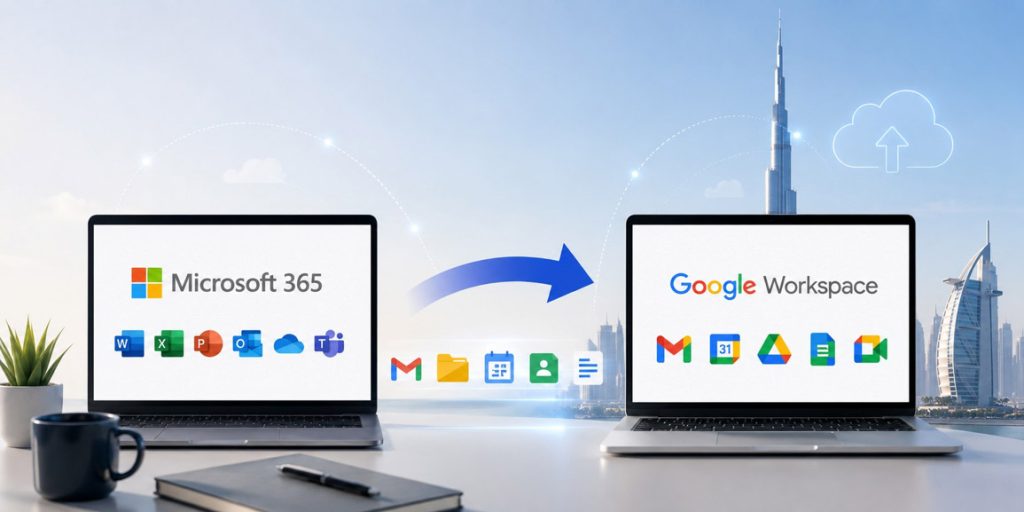
- What Data Can You Migrate from Microsoft 365 to Google Workspace?
- Prerequisites Before Migrating to Google Workspace
- Step-by-Step Guide to Migrate from Microsoft 365 to Google Workspace
- Common Challenges During Microsoft 365 to Google Workspace Migration
- Post-Migration Checklist: What to Do After the Migration
- Migrate to Google Workspace with XL Technologies
- Conclusion
Migrating from Microsoft 365 to Google Workspace can improve collaboration, simplify IT management, and provide a more flexible cloud-based work environment. However, a successful migration requires proper planning to ensure your emails, files, contacts, calendars, and business data are transferred securely without disrupting daily operations.
This blog covers everything you need to know about migrating from Microsoft 365 to Google Workspace. It explains what data can be migrated, the prerequisites to complete before starting, and provides a step-by-step process to help you migrate successfully. You’ll also learn about common migration challenges and a post-migration checklist to ensure your Google Workspace environment is ready for everyday business use.
What Data Can You Migrate from Microsoft 365 to Google Workspace?
Google Workspace’s migration capabilities allow you to transfer the majority of your business-critical data from Microsoft 365. Here’s what you can migrate:
- Emails and Mail Folders — Migrate mailbox data, including email messages, folders, labels, and attachments.
- Contacts — Transfer personal and shared contacts with names, email addresses, phone numbers, and other contact details.
- Calendars — Migrate calendar events, recurring meetings, reminders, and attendee information.
- OneDrive Files — Move documents, spreadsheets, presentations, PDFs, and other supported files from OneDrive to Google Drive. Microsoft Office files can remain in their original format or be converted to Google Docs, Sheets, and Slides if required.
- SharePoint Documents — Transfer files and shared documents stored in SharePoint sites to Google Drive while preserving the folder structure where possible.
- Shared Mailboxes — Shared mailboxes can also be migrated, depending on your migration method and configuration.
- User Accounts — Create matching user accounts in Google Workspace before migration so users can access their emails, files, calendars, and contacts after the migration is complete.
Prerequisites Before Migrating to Google Workspace
Before initiating your migration, ensure you have completed the following prerequisites to help ensure a smooth, secure, and disruption-free transition from Microsoft 365 to Google Workspace.
- Purchase and set up your Google Workspace subscription.
- Verify your business domain in Google Workspace.
- Create user accounts for all employees who will be migrated.
- Ensure you have Global Administrator access to your Microsoft 365 tenant.
- Back up important emails and files as a precaution before migration.
- Review available Google Workspace storage to accommodate your existing data.
- Prepare DNS access to update MX and other email-related records after migration.
- Check network connectivity and internet stability to avoid interruptions during migration.
- Notify employees about the migration schedule and any expected service interruptions.
Plan the migration timeline, including a suitable cutover date and post-migration validation.
Step-by-Step Guide to Migrate from Microsoft 365 to Google Workspace
Migrating from Microsoft 365 to Google Workspace requires careful planning to ensure emails, calendars, contacts, and files are transferred without data loss or business disruption. Following a structured migration process helps minimize downtime, maintain business continuity, and ensure users can quickly adapt to the new platform.
Before starting the migration, review your existing Microsoft 365 environment to understand what needs to be transferred. This assessment helps you estimate migration time, identify potential challenges, and create an effective migration plan.
Evaluate the following:
- Number of user accounts
- Mailbox sizes
- Shared mailboxes
- Distribution lists
- Calendar and contact data
- OneDrive files (if required)
Also, identify inactive accounts or outdated data that no longer needs to be migrated. Cleaning up unnecessary information before migration can reduce migration time and simplify the transition.
Prepare your Google Workspace environment before moving any data. A properly configured environment ensures users can access services immediately after migration.
Complete the following tasks:
- Create your Google Workspace account.
- Verify your business domain.
- Add user accounts.
- Assign Google Workspace licenses.
- Configure organizational units, groups, and shared drives if required.
- Enable security features such as two-factor authentication and password policies.
Completing these configurations in advance helps avoid delays during the migration process.
Ensure your Microsoft 365 environment is ready to connect with Google’s migration tools. Proper preparation helps prevent permission issues and migration failures.
Before proceeding:
- Confirm administrator access.
- Create the required migration endpoint.
- Verify mailbox permissions.
- Review shared mailboxes and distribution groups.
- Remove unnecessary or obsolete emails and files.
It’s also recommended to notify employees about the migration schedule so they know when temporary service interruptions may occur.
Google Workspace includes the Data Migration Service, which allows businesses to migrate data directly from Microsoft 365. This built-in tool simplifies the migration process and reduces the need for third-party software.
The Data Migration Service supports:
- Emails
- Email folders
- Contacts
- Calendars
Select Microsoft 365 as the source platform and Google Workspace as the destination before proceeding with the migration.
Once the migration tool is ready, configure the migration settings based on your business requirements. Reviewing these settings carefully helps ensure the correct data is transferred.
Configure the following:
- Microsoft 365 administrator credentials
- Users to migrate
- Data types to transfer
- Migration options
- Date ranges (optional)
Before starting the migration, verify that user accounts are correctly mapped between Microsoft 365 and Google Workspace.
Begin transferring data using the Google Admin console and monitor the migration status throughout the process. Depending on the size of your organization, migrations may take several hours or even days.
Migration speed depends on factors such as:
- Mailbox size
- Internet bandwidth
- Number of users
- Microsoft 365 service response
- Volume of files and attachments
Regularly monitor migration reports to identify any skipped items or errors that may require attention.
Begin transferring data using the Google Admin console and monitor the migration status throughout the process. Depending on the size of your organization, migrations may take several hours or even days.
Migration speed depends on factors such as:
- Mailbox size
- Internet bandwidth
- Number of users
- Microsoft 365 service response
- Volume of files and attachments
Regularly monitor migration reports to identify any skipped items or errors that may require attention.
Once the migration is complete, validate that all business data has been transferred accurately. Performing a thorough verification helps identify any missing information before users begin working in Google Workspace.
Verify the following:
- All emails have been migrated.
- Contacts and calendars are complete.
- Shared mailboxes and groups are accessible.
- Google Drive files are available (if migrated).
- Users can send and receive emails.
- Access works correctly on desktop and mobile devices.
Resolving any issues at this stage ensures a smooth transition for all users.
Help employees become familiar with Google Workspace applications such as Gmail, Google Drive, Google Meet, Google Calendar, and Google Docs. Providing basic training reduces the learning curve and improves productivity after migration.
Before cancelling your Microsoft 365 subscription:
- Confirm all required data has been migrated.
- Verify users can access their accounts without issues.
- Ensure business applications are functioning correctly.
- Keep Microsoft 365 available for a short transition period if necessary.
Once all checks have been completed successfully, you can safely decommission Microsoft 365 and continue operating entirely within Google Workspace.
Common Challenges During Microsoft 365 to Google Workspace Migration
Being aware of potential migration challenges helps businesses plan effectively, minimize disruption, and ensure a smooth transition to Google Workspace.
Challenge: Although Microsoft Office documents can be migrated to Google Drive, some advanced formatting, macros, charts, or formulas may not work exactly the same when converted to Google Docs, Sheets, or Slides.
Solution: Keep original Microsoft Office files where necessary, test critical business documents before migration, and only convert files to Google formats after verifying compatibility.
Challenge: Outlook inbox rules, email filters, signatures, categories, and automatic replies are generally not migrated by Google’s Data Migration Service.
Solution: Document important mailbox settings before migration and recreate essential rules and filters in Gmail after users are migrated.
Challenge: Permissions for OneDrive and SharePoint files may not always transfer exactly as configured, especially for shared folders and external collaborators.
Solution: Review folder permissions after migration, verify shared access for important business documents, and update sharing settings where necessary.
Challenge: Employees who have worked with Outlook, Teams, and OneDrive for years may require time to become familiar with Gmail, Google Meet, Google Drive, and other Google Workspace applications.
Solution: Provide user training, migration guides, and post-migration support to help employees quickly adapt to the new collaboration environment.
Challenge: Business applications integrated with Microsoft 365, such as CRM systems, ERP platforms, automated workflows, or authentication services, may require reconfiguration after migration.
Solution: Audit all Microsoft 365 integrations before migration, identify Google
Workspace-compatible alternatives where necessary, and test every critical business application before going live.
Post-Migration Checklist: What to Do After the Migration
Completing these tasks after migration ensures your Google Workspace environment is fully optimized:
1. Verify Data Integrity
Conduct spot checks on randomly selected user mailboxes, calendar events, and files to ensure everything transferred correctly. Check for completeness and proper formatting.
2. Update Email Signatures
Ensure all email signatures include the Google Workspace address and remove any outdated Microsoft 365 references. Create standardized signatures for consistency across the organization.
3. Notify Contacts and Partners
Inform clients, partners, and external stakeholders of your new email addresses and any changes to contact details or communication protocols.
4. Decommission Microsoft 365
After confirming all data has migrated successfully, schedule the decommissioning of Microsoft 365 services. Keep licenses active for a short period as a backup before completely shutting down.
5. Optimize Shared Drives and Permissions
Review and optimize access permissions on Google Shared Drives. Ensure sensitive documents have appropriate sharing restrictions and that organizational hierarchies are reflected in drive structures.
6. Set Up Advanced Security Features
Enable advanced Google Workspace security features such as Advanced Phishing and Malware Protection, Security Key Enforcement, and endpoint verification.
7. Implement Data Loss Prevention (DLP)
Configure DLP rules to prevent accidental sharing of sensitive information like financial data, personal identifiable information (PII), or trade secrets.
8. Complete User Training and Support
Ensure all users have received training and have access to documentation. Set up a help desk to handle migration-related issues and questions.
9. Archive Old Data
Archive historical data from Microsoft 365 that doesn’t need regular access. Store it securely for compliance and regulatory purposes.
10. Monitor System Performance
Track system usage and performance metrics to ensure Google Workspace is meeting your organization’s needs. Address any performance issues promptly.
Migrate to Google Workspace with XL Technologies
XL Technologies is a Google Workspace Partner providing end-to-end Google Workspace migration services for businesses across the UAE and the Middle East. Our experienced team can guide you through every step of your Microsoft 365 to Google Workspace migration with:
- Expert planning and strategy tailored to your organization
- Seamless data migration with zero data loss
- Comprehensive employee training and onboarding
- Post-migration support and optimization
- Compliance with UAE regulatory requirements
Conclusion
A well-planned Microsoft 365 to Google Workspace migration lays the foundation for a more connected, secure, and scalable digital workplace. With the right preparation and execution, businesses can transition confidently while ensuring continuity, improving collaboration, and supporting long-term operational efficiency.
Frequently Asked Questions
1. How long does it take to migrate from Microsoft 365 to Google Workspace?
The migration time depends on factors such as the number of users, mailbox sizes, internet bandwidth, and the amount of data being transferred. Small businesses may complete the migration within a few hours, while larger organizations can take several days.
2. Will I lose my emails or files during the migration?
When the migration is properly planned and carried out using Google’s migration tools or a trusted migration partner, your emails, contacts, calendars, and supported files can be transferred securely with minimal risk of data loss. Backing up important data before migration is always recommended.
3. Do I need technical expertise to migrate from Microsoft 365 to Google Workspace?
Google Workspace provides built-in migration tools that simplify the process. However, businesses with large mailboxes, complex environments, or compliance requirements often work with experienced Google Workspace migration specialists to ensure a smooth and successful migration.
4. What should I do after migrating to Google Workspace?
After the migration, verify that all emails, contacts, calendars, and files have been transferred successfully. Update your MX records if you haven’t already, configure security settings such as SPF, DKIM, and DMARC, train users on Google Workspace applications, and monitor the environment to ensure everything is functioning as expected.
5. How long does a typical migration from Microsoft 365 to Google Workspace take?
Migration time depends on the number of users, mailbox sizes, data volume, and network speed. Small businesses may complete the migration within a few hours, while larger organizations can take several days.