
Google Workspace Shared Inbox: How to Manage Customer Emails as a Team
By Divya – Support Engineer and Google Cloud Certified Digital Leader with 2+ years of experience in Google Workspace administration at XL Technologies. Her expertise includes user account creation, permission management, email configuration, security, and ticket handling. With proven skills, she ensures smooth, secure, and efficient Workspace operations for clients. At XL Technologies, Divya plays a key role in driving digital transformation through Google Cloud solutions. She is passionate about helping businesses maximize productivity and collaboration with Google Workspace.
- What Is a Google Workspace Shared Inbox?
- Why UAE Businesses Need a Shared Inbox
- Two Ways to Create a Shared Inbox in Google Workspace
- Gmail Delegation vs. Google Groups Collaborative Inbox
- Best Practices for Managing Customer Emails as a Team
- When Should You Consider a More Advanced Shared Inbox?
- How XL Technologies Helps UAE Businesses with Google Workspace
Customer emails are more than messages—they are opportunities to build trust, resolve issues, and strengthen business relationships. For UAE businesses managing enquiries across sales, customer support, finance, and operations, a shared inbox can help teams respond faster and deliver a consistent customer experience.
Google Workspace offers practical ways to manage customer emails collaboratively without relying on shared passwords or disconnected personal inboxes. This guide explains how to set up a Google Workspace shared inbox, choose the right collaboration method, assign responsibilities, and improve customer communication.
Customer emails are more than messages—they are opportunities to build trust, resolve issues, and strengthen business relationships. For UAE businesses managing enquiries across sales, customer support, finance, and operations, a shared inbox can help teams respond faster and deliver a consistent customer experience.
Google Workspace offers practical ways to manage customer emails collaboratively without relying on shared passwords or disconnected personal inboxes. This guide explains how to set up a Google Workspace shared inbox, choose the right collaboration method, assign responsibilities, and improve customer communication.
What Is a Google Workspace Shared Inbox?
A shared inbox is a central email address that multiple team members can access to manage incoming messages. Common examples include:
- [email protected] for customer support
- [email protected] for sales enquiries
- [email protected] for invoices and payments
- [email protected] for general enquiries
Instead of forwarding emails between employees or relying on one person to monitor every message, teams can work together through a shared address.
Google Workspace supports shared inbox workflows through Gmail delegation and Google Groups Collaborative Inbox. These options provide different levels of collaboration, depending on whether your team primarily needs shared access or conversation ownership and tracking.
Why UAE Businesses Need a Shared Inbox
As businesses expand across Dubai, Abu Dhabi, Sharjah, and other emirates, customer communication can become difficult to coordinate.
A shared inbox helps businesses:
- Improve response times: Multiple team members can monitor incoming enquiries.
- Prevent missed emails: Messages remain accessible when employees are absent or on leave.
- Maintain continuity: Team members can review previous customer conversations.
- Clarify responsibility: Assignments help prevent duplicate replies and unanswered requests.
- Improve customer experience: Customers receive consistent communication from a professional business address.
For businesses operating in regulated sectors or handling personal information, access controls and appropriate data-handling practices are especially important. UAE businesses should consider applicable requirements under the UAE Personal Data Protection Law.
Two Ways to Create a Shared Inbox in Google Workspace
1. Gmail Delegation: Share Access to a Mailbox
Gmail delegation allows designated users to access a mailbox using their own Google accounts. Delegates can read, send, and delete messages without needing the account owner’s password.
This approach is suitable for small teams that need to manage an existing mailbox, such as an executive assistant handling a manager’s email or two employees sharing an administrative inbox.
How to set up Gmail delegation:
- Open Gmail and select Settings.
- Click See all settings.
- Open Accounts and Import.
- Under Grant access to your account, select Add another account.
- Enter the colleague’s Google Workspace email address.
- Send the invitation and have the colleague accept it.
- Open the delegated mailbox to begin managing messages.
Your Google Workspace administrator may need to enable delegation in the Admin console before users can configure it.
2. Google Groups Collaborative Inbox: Assign and Track Conversations
Google Groups Collaborative Inbox is designed for teams that need more structured email management.
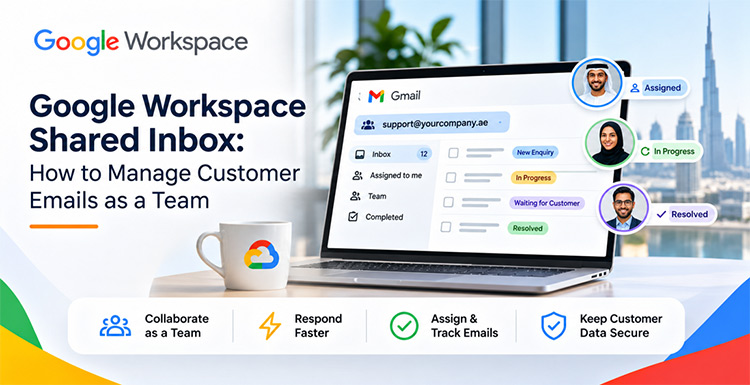
Unlike basic mailbox delegation, it allows team members to assign conversations, mark them complete, apply labels, and filter discussions by status or assignee.
This makes it particularly useful for customer support, sales enquiries, and service requests.
How to set up a Collaborative Inbox:
- Open Google Groups.
- Create a group using your preferred shared address, such as [email protected].
- Add the relevant employees as group members.
- Configure permissions so customers outside your organization can email the group.
- Enable Collaborative Inbox features in the group’s settings.
- Set appropriate permissions for assigning, viewing, and resolving conversations.
- Test the inbox by sending an email from an external address.
Your team can then use the group’s Topics view to manage customer conversations, assign ownership, and mark completed requests.
Gmail Delegation vs. Google Groups Collaborative Inbox
| Feature | Gmail Delegation | Collaborative Inbox |
| Shared email access | Yes | Yes, through group conversations |
| Send and receive messages | Yes | Yes |
| Assign conversations | Not built in as a team queue | Yes |
| Track resolution status | Basic Gmail organization | Yes |
| Best suited for | Small teams sharing a mailbox | Customer service and sales teams |
Which should you choose? Use Gmail delegation when your priority is shared mailbox access. Choose Collaborative Inbox when your team needs clear ownership, status tracking, and a more structured customer-support workflow.
Best Practices for Managing Customer Emails as a Team
Assign Every Conversation
Unassigned emails can easily be overlooked. Establish a process in which each incoming enquiry is assigned to a team member as soon as possible.
For example, a Dubai-based technology company might assign product enquiries to sales, technical issues to support, and invoice questions to finance.
Create a Consistent Label System
Use a small, practical set of labels to organize conversations:
- New Enquiry
- In Progress
- Waiting for Customer
- Escalated
- Resolved
Consistent labels make it easier to identify urgent requests and understand the status of customer conversations.
Establish Response-Time Expectations
Define internal service-level targets based on your team’s capacity and customer expectations. For example, a business might aim to acknowledge new enquiries within two business hours and resolve routine requests within one working day.
These are internal targets, not guaranteed Google Workspace response times.
Use Templates for Repetitive Replies
Gmail templates can help teams respond consistently to common questions about pricing, onboarding, documentation, and service availability.
Personalize each response before sending it to ensure the message addresses the customer’s specific needs.
Protect Customer Information
Avoid sharing mailbox passwords. Give each employee access through their own account, use appropriate access permissions, and remove access when employees leave the organization.
For additional protection, configure multi-factor authentication, review group membership regularly, and follow your organization’s data-retention policies.
When Should You Consider a More Advanced Shared Inbox?
Google Workspace’s built-in options are suitable for many small and medium-sized teams. However, businesses with high email volumes or complex support operations may need additional capabilities.
Consider dedicated shared inbox software if your team requires:
- Internal notes that customers cannot see
- Advanced automation and routing
- Detailed response-time and workload reporting
- CRM integration and customer history
- Advanced collision detection to prevent duplicate replies
The right solution depends on your team’s size, processes, and customer-service requirements.
How XL Technologies Helps UAE Businesses with Google Workspace
Setting up a shared inbox is only one part of building an efficient collaboration environment. XL Technologies helps UAE businesses implement Google Workspace with services that include:
- Google Workspace setup and configuration
- Email migration from Microsoft 365, Zoho, cPanel, and other platforms
- Admin Console configuration and user management
- Security hardening and access controls
- Employee onboarding and training
- Ongoing technical support and licensing assistance
As an authorized Google Workspace partner and reseller in the UAE, XL Technologies can help your organization choose the right configuration for its communication and collaboration needs.
Frequently Asked Questions
Does Google Workspace have a shared inbox?
Google Workspace supports shared inbox workflows through Gmail delegation and Google Groups Collaborative Inbox. The best option depends on whether your team needs shared mailbox access or conversation assignment and tracking.
Can multiple employees reply from the same email address?
Yes. Gmail delegation and Google Groups can support team responses from a shared business address, depending on the configuration and permissions.
Is Gmail delegation secure?
Delegation allows employees to access a mailbox using their own accounts rather than sharing passwords. Administrators can control whether delegation is available and manage access policies.
Can customers outside my organization email a Google Group?
Yes. Configure the group’s posting permissions to allow external senders, while restricting access to conversations and administrative functions appropriately.
Can XL Technologies help configure a shared inbox?
Yes. XL Technologies provides Google Workspace setup, configuration, migration, training, and support for businesses across the UAE.