
How to Replace Microsoft 365 Shared Mailboxes in Google Workspace
By Divya – Support Engineer and Google Cloud Certified Digital Leader with 2+ years of experience in Google Workspace administration at XL Technologies. Her expertise includes user account creation, permission management, email configuration, security, and ticket handling. With proven skills, she ensures smooth, secure, and efficient Workspace operations for clients. At XL Technologies, Divya plays a key role in driving digital transformation through Google Cloud solutions. She is passionate about helping businesses maximize productivity and collaboration with Google Workspace.
- What Is a Microsoft 365 Shared Mailbox?
- Does Google Workspace Have a Direct Equivalent to Microsoft 365 Shared Mailboxes?
- Use Gmail Delegation as a Shared Mailbox Alternative
- How Gmail delegation works
- How to configure Gmail delegation
- When should you use Gmail delegation?
- Use Google Groups Collaborative Inbox
- How a Collaborative Inbox works
- How to set up a Collaborative Inbox
- When should you use Google Groups Collaborative Inbox?
- Use a Dedicated Shared Inbox Tool
- Which Google Workspace Alternative Should You Choose?
- How to Migrate Existing Microsoft 365 Shared Mailbox Emails
- What Happens to Send As and Send on Behalf Permissions?
- Security and Administration Considerations
- Common Mistakes When Replacing Microsoft 365 Shared Mailboxes
- Shared Mailbox Migration Checklist for UAE Businesses
- How XL Technologies Can Help with Your Google Workspace Migration
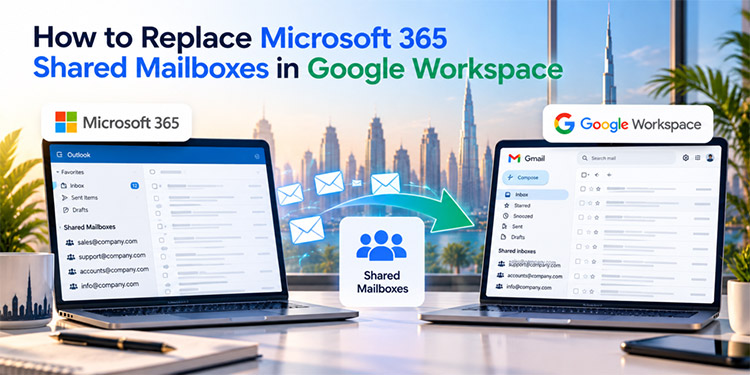
Many businesses use Microsoft 365 shared mailboxes to manage customer enquiries, sales requests, support tickets, invoices and internal communications. Addresses such as [email protected], [email protected] and [email protected] allow multiple employees to handle messages sent to a common business email address.
When migrating from Microsoft 365 to Google Workspace, businesses need to decide how these shared mailbox workflows will operate in Gmail. Google Workspace supports several collaboration options, but each works differently from a Microsoft 365 shared mailbox.
For UAE businesses planning a migration, choosing the right replacement before moving email is essential. This guide explains the available options, how to choose between them, what happens to existing messages and permissions, and how to prepare for a smooth transition.
What Is a Microsoft 365 Shared Mailbox?
A Microsoft 365 shared mailbox is an email mailbox that multiple authorised users can access. It allows employees to manage messages sent to a common address without requiring every employee to sign in to the same account.
For example, a company might use these shared mailboxes:
- [email protected] for sales enquiries and quotations
- [email protected] for customer issues
- [email protected] for invoices and payment enquiries
- [email protected] for general business enquiries
- [email protected] for recruitment and employee communication
Administrators can assign permissions that allow employees to read messages, manage the mailbox or send email using the shared address, depending on the permission granted.
Shared mailboxes are useful because they centralise business communication. However, migrating to Google Workspace requires a review of how these mailboxes are used and which features employees depend on.
Does Google Workspace Have a Direct Equivalent to Microsoft 365 Shared Mailboxes?
Google Workspace does not offer an identical, native Microsoft 365-style shared mailbox object with exactly the same management and permission model.
Instead, businesses can choose from several alternatives:
- Gmail delegation: Allow authorised users to access a dedicated Gmail account and manage its messages.
- Google Groups Collaborative Inbox: Let a team manage messages sent to a shared group address.
- Dedicated shared inbox software: Use a third-party tool designed for team email management.
- Email aliases: Deliver messages sent to an additional address into an existing user’s mailbox when individual ownership and collaboration requirements are simple.
Google documents email delegation as a way for multiple people to access and manage a single account. Google Groups provides a separate approach for team-based communication. The correct option depends on your workflow.
Use Gmail Delegation as a Shared Mailbox Alternative
Gmail delegation allows authorised users to access another Gmail account without sharing its password. Delegates can read, send and delete messages in that account, subject to the applicable settings and permissions.
For example, a business can create a dedicated Google Workspace account for [email protected] and allow the sales team to access it through delegation.
How Gmail delegation works
Suppose three employees manage incoming sales enquiries. Instead of creating a separate shared mailbox object, the organisation can configure a dedicated account and grant the relevant employees delegated access.
The employees can then access the delegated mailbox and respond to incoming messages.
Potential benefits include:
- A central inbox for incoming email
- Access for multiple authorised employees
- The ability to send and manage messages
- Gmail filters, labels and search
- Administrative control over whether delegation is permitted
Google’s documentation describes delegated Gmail accounts as shared inboxes and explains that administrators can control delegation settings. Google also supports delegated access through the Gmail mobile app, subject to the available rollout and account settings.
How to configure Gmail delegation
The exact interface may vary, but the general process is as follows.
Step 1: Create the dedicated account
Create a Google Workspace account for the address that will manage the shared communication, such as [email protected].
Plan the account’s licence, storage, security and ownership requirements before creating it.
Step 2: Enable email delegation
A Google Workspace administrator can open the Admin console and navigate to:
Apps → Google Workspace → Gmail → User settings → Mail delegation.
Enable delegation for the relevant users or organisational unit, as appropriate. The available settings depend on the administrator’s permissions and the organisation’s configuration.
Step 3: Grant access to authorised employees
The account owner can add the relevant employees as delegates through Gmail settings. Where supported and configured, a Google Group can also be used to manage delegated access for a team.
Step 4: Configure sender information
Review the sender information displayed when delegates send messages. Depending on the configured setting, recipients may see the account owner’s address alone or both the account owner and delegate information.
Step 5: Test the workflow
Ask authorised employees to access the delegated inbox, send replies, find previous messages and verify the expected sender information.
Also confirm that unauthorised employees cannot access the mailbox.
When should you use Gmail delegation?
Gmail delegation can be a suitable choice when a small team needs to manage one central email account, such as an executive’s inbox, a general enquiry address or a departmental mailbox.
However, it may not provide all the team workflow features required by a customer support or sales operation. For example, businesses that need clear ownership of each message, collision detection, service-level reporting or advanced assignment workflows should assess whether delegation alone is sufficient.
Important: Gmail delegation requires an actual Google account. An email alias by itself cannot be delegated as a separate account.
Use Google Groups Collaborative Inbox
Google Groups Collaborative Inbox is another option for managing messages sent to a common business email address.
Unlike Gmail delegation, which provides access to an individual account, a Collaborative Inbox is designed around group communication and the management of conversations.
For example, a company might create a group for [email protected] and allow authorised support employees to participate in the group.
How a Collaborative Inbox works
Depending on the configuration, group members can receive messages, access conversations and use collaboration features to manage the group’s incoming communication.
Collaborative Inbox features can support workflows such as:
- Assigning conversations to group members
- Marking conversations as complete
- Tracking which messages require attention
- Allowing multiple team members to participate in discussions
- Managing access through group membership
This can be useful when the primary requirement is for a team to handle incoming messages rather than maintain a traditional mailbox with the same folder structure and permissions as Microsoft 365.
How to set up a Collaborative Inbox
Step 1: Create a Google Group
Create a group for the required address, such as [email protected], using Google Groups or the relevant administrator interface.
Step 2: Configure the group as a Collaborative Inbox
In the Google Groups settings, enable the Collaborative Inbox features where available.
Step 3: Add the team members
Add the employees who need to receive or manage support messages. Assign suitable group roles and permissions.
Step 4: Configure access and delivery
Review who can post messages, who can view conversations and whether group messages should also be delivered to members’ individual inboxes.
Step 5: Test message handling
Send test emails to the group. Confirm that authorised employees can find conversations, manage their status and respond using the intended workflow.
When should you use Google Groups Collaborative Inbox?
This option may be appropriate for teams managing shared enquiries, internal requests or group communication where conversation assignment and completion are important.
However, a Collaborative Inbox is not identical to an Exchange shared mailbox. Its interface, message-management model, sent-message behaviour and integration options differ. Businesses should test their required workflows before selecting it as a replacement.
Use a Dedicated Shared Inbox Tool
Some organisations need more advanced collaboration features than Gmail delegation or Google Groups can provide.
A dedicated shared inbox application can sit alongside Google Workspace and provide a more structured team email workflow.
Depending on the product, features may include:
- Assigning messages to specific employees
- Internal comments and team notes
- Collision detection to reduce duplicate replies
- Conversation ownership and status tracking
- Customer response reporting
- Integration with CRM or helpdesk systems
- Automation and workflow rules
For example, a customer support team may need to know who owns each enquiry, how long a customer has been waiting and whether a colleague has already replied. A dedicated shared inbox tool may be better suited to those requirements.
Before selecting a third-party tool, review its integration with Google Workspace, security controls, data-processing terms, retention settings, pricing and support arrangements.
Also confirm whether the application provides the level of auditability and reporting your business requires.
Which Google Workspace Alternative Should You Choose?
The best replacement depends on the purpose of each Microsoft 365 shared mailbox.
| Business requirement | Potential replacement | Key consideration |
| One or two employees managing a common inbox | Gmail delegation | Confirm that account-based access and message handling meet the team’s needs |
| Team-based enquiries and conversation management | Google Groups Collaborative Inbox | Test assignment, completion, permissions and reply behaviour |
| Customer support with ownership and reporting | Dedicated shared inbox or helpdesk | Review assignment, automation, reporting and integrations |
| Additional address for one employee | Email Alaies | An alias is not a separate mailbox or shared inbox |
| Department requiring traditional mailbox-style workflows | Gmail delegation or a suitable third-party tool | Compare required features, licensing and operational controls |
A business does not have to use the same replacement for every shared mailbox.
For example, [email protected] may work well with an alias or delegated inbox, while [email protected] may need a Collaborative Inbox or helpdesk tool. An accounts mailbox may require stricter access controls and a carefully tested workflow.
Choose the replacement based on what each mailbox does, not just its email address
How to Migrate Existing Microsoft 365 Shared Mailbox Emails
One of the most important parts of a migration is preserving the information employees need from existing shared mailboxes.
Historical messages may contain customer commitments, quotations, invoices, support discussions, contractual information and records needed for future reference.
Creating a new Google account or Group does not, by itself, migrate the historical contents of an Exchange shared mailbox.
Step 1: Audit the existing shared mailboxes
List every shared mailbox in Microsoft 365 and document:
- Email address and business purpose
- Mailbox size and approximate message volume
- Users with access
- Send As and Send on Behalf permissions
- Folder structure and retention requirements
- Forwarding rules and automatic replies
- Connected applications or business processes
- Whether historical messages must remain accessible
Also identify inactive mailboxes and addresses that may no longer be needed.
Step 2: Choose the Google Workspace destination
For each mailbox, decide whether the destination will be a delegated account, a Collaborative Inbox, an alias or a third-party shared inbox.
Document why the selected option meets the business requirement and record any functionality that will change.
Step 3: Plan the historical email migration
Determine how the existing email content will be transferred and where it will be stored.
Migration methods and supported data types depend on the tools used. A standard user-mailbox migration process should not automatically be assumed to cover Exchange shared mailboxes, their permissions and all associated workflows.
The migration team should verify the supported source mailbox type, destination, folder and label behaviour, message metadata, attachments and any relevant size or item limitations.
For each mailbox, decide whether the destination will be a delegated account, a Collaborative Inbox, an alias or a third-party shared inbox.
Document why the selected option meets the business requirement and record any functionality that will change.
Step 4: Recreate access and permissions
Microsoft 365 permissions do not automatically become Google Workspace delegation settings or Google Groups membership.
Create the destination access model and verify it with the appropriate employees. Pay particular attention to sensitive mailboxes, such as HR, finance and executive communication.
Step 5: Test historical messages
After migration, verify representative messages across different dates and folders. Check attachments, searchability, message dates and other important information.
For business-critical records, obtain approval from the relevant mailbox owner before retiring the source mailbox.
Step 6: Plan email routing and cutover
Coordinate the change so that messages sent to the shared address reach the intended destination. Check domain routing, address configuration, aliases, group delivery and any forwarding rules.
During the cutover, test inbound email, outbound replies and the sender address seen by recipients.
After migration, verify representative messages across different dates and folders. Check attachments, searchability, message dates and other important information.
For business-critical records, obtain approval from the relevant mailbox owner before retiring the source mailbox.
Step 7: Retain the agreed recovery option
Keep the source mailbox available for the agreed transition period where appropriate. Define how the team will handle any missed messages, failed imports or permission problems.
Do not decommission the source mailbox until the required checks and approvals are complete.
For broader migration planning,
What Happens to Send As and Send on Behalf Permissions?
Microsoft 365 shared mailboxes commonly use permissions such as Full Access, Send As and Send on Behalf.
These permissions control different actions:
- Full Access: Allows a user to open and manage the mailbox.
- Send As: Allows a user to send a message that appears to come directly from the shared mailbox.
- Send on Behalf: Allows a user to send a message on behalf of the shared mailbox, with the sender relationship reflected in the message.
When moving to Google Workspace, do not assume these permissions will map one-to-one.
Gmail delegation has its own access and sender-display behaviour. Google Groups has a different membership and posting model. Third-party inbox tools may provide their own sending and audit features.
Before migration, document how each team sends email and what recipients should see.
For example, a sales team may need customer replies to come from [email protected]. Test the chosen destination to confirm that messages use the expected address and that employees can identify who handled the communication.
Security and Administration Considerations
Shared inboxes often contain confidential business information. Replacing them should be treated as an access-control change, not simply an email configuration task.
Apply least-privilege access
Give each employee only the access required for their role. Review group membership and delegation when employees change departments or leave the organisation.
Secure the underlying account
If using a dedicated delegated Gmail account, configure appropriate administrator controls, strong authentication and recovery procedures. Avoid sharing a common password among employees.
Review audit and accountability needs
Determine whether your business needs to identify who sent a message, who changed access or who handled a particular customer enquiry.
Test the capabilities of the chosen setup and confirm whether additional reporting or third-party software is necessary.
Set retention and information-handling rules
Review how long business messages must be retained, whether legal holds or regulatory obligations apply, and how deletion should be managed.
The correct configuration depends on your industry, data sensitivity and contractual requirements.
Test external sharing and sending restrictions
Review who can send messages to the group or access the mailbox, whether external users are permitted and whether administrators need to restrict certain actions.
These checks are particularly important for finance, HR, customer support and other mailboxes containing sensitive information.
Common Mistakes When Replacing Microsoft 365 Shared Mailboxes
Shared inboxes often contain confidential business information. Replacing them should be treated as an access-control change, not simply an email configuration task.
Assuming Google Groups is exactly the same as an Exchange shared mailbox
The two options have different management models and user experiences. Test the team’s actual requirements before choosing Google Groups.
Creating an alias when the team needs a shared inbox
An alias delivers mail to a user’s existing account. It does not create a separate mailbox that several employees can independently manage.
Forgetting to migrate historical messages
A new destination address does not automatically contain the old mailbox’s email history. Plan and validate the historical data migration separately.
Overlooking Send As behaviour
A team may need to reply from a shared address. Confirm how the selected Google Workspace setup handles the sender identity before the change goes live.
Ignoring mailbox permissions
Microsoft 365 access permissions do not automatically transfer to Google Workspace. Rebuild and test the intended access model.
Decommissioning the source too early
Retire the old mailbox only after historical messages, permissions, routing and user workflows have been validated and approved.
Shared Mailbox Migration Checklist for UAE Businesses
Use this checklist before migrating shared mailboxes from Microsoft 365 to Google Workspace.
Discovery and planning
- List all shared mailboxes and their business purposes.
- Record mailbox size, users, permissions and retention needs.
- Identify critical customer, finance, HR and support workflows.
- Decide which destination option fits each mailbox.
- Identify third-party tools or integrations that need to be replaced.
Migration preparation
- Confirm that the selected migration method supports the source mailbox type.
- Plan how historical messages and attachments will be transferred.
- Document the destination address and access model.
- Recreate required sending permissions and delivery settings.
- Review security, retention and administrator controls.
Testing and rollout
- Verify historical messages and attachments.
- Test inbound and outbound email.
- Confirm the sender address shown to recipients.
- Test access for authorised and unauthorised users.
- Confirm that the team can manage conversations as required.
- Obtain business-owner approval.
- Keep a recovery plan for the transition.
- Decommission the source only when the agreed checks are complete.
How XL Technologies Can Help with Your Google Workspace Migration
Moving from Microsoft 365 to Google Workspace involves more than transferring individual user mailboxes. Shared addresses often support customer communication, internal approvals, invoicing and other essential business processes.
XL Technologies can help UAE businesses plan their Google Workspace migration by reviewing existing shared mailboxes, documenting access and sending requirements, identifying suitable destination options and coordinating migration testing.
Our migration planning can include:
- Microsoft 365 shared mailbox inventory and assessment
- Mapping each mailbox to a suitable Google Workspace alternative
- Planning historical email migration and validation
- Reviewing delegated access, group membership and sending behaviour
- Coordinating email routing and cutover testing
- Supporting users as they transition to the new workflow
The appropriate solution depends on your mailbox requirements, data volume, security policies and preferred way of working. Where a destination feature does not provide a like-for-like replacement, the migration plan should document the difference and agree on an alternative before the cutover.
Frequently Asked Questions
1. Does Google Workspace have shared mailboxes like Microsoft 365?
Google Workspace does not offer an identical Microsoft 365-style shared mailbox object. Businesses can use Gmail delegation, Google Groups Collaborative Inbox, email aliases or third-party shared inbox tools, depending on their needs.
2. What is the best Microsoft 365 shared mailbox alternative in Google Workspace?
The best option depends on the workflow. Gmail delegation can work for a shared account, Google Groups Collaborative Inbox can support team-based conversation management, and a dedicated shared inbox tool may suit teams needing advanced assignment and reporting.
3. Can I migrate a Microsoft 365 shared mailbox to Gmail?
Historical messages can be migrated using an appropriate migration approach, but the method must support the source mailbox type and destination. The mailbox’s permissions, sending behaviour and collaboration workflow may need to be recreated separately.
4. Can multiple users access one Gmail account?
Yes. Gmail delegation allows authorised users to access and manage an account without sharing its password. Administrators can control whether delegation is available. Access limits and performance considerations apply.
5. Can Google Groups replace a Microsoft 365 shared mailbox?
Google Groups Collaborative Inbox may replace some shared mailbox workflows, particularly those involving team-based conversation management. However, it does not behave identically to an Exchange shared mailbox, so test permissions, replies, historical data and workflow requirements first.
6. Can users send emails from a shared address in Google Workspace?
The available sending behaviour depends on the chosen solution and configuration. Gmail delegation, group settings, aliases and third-party inbox tools work differently. Test the sender identity and recipient experience before migration.
7. Will Microsoft 365 shared mailbox permissions transfer automatically?
Do not assume they will. Review existing Full Access, Send As and Send on Behalf permissions, then recreate the appropriate destination access and sending arrangements.
8. Should a business use one shared inbox solution for every department?
Not necessarily. A general information address may need only simple shared access, while
customer support may require assignment and reporting. Finance and HR may have stricter
access requirements. Choose the solution for each mailbox based on its purpose.