
SharePoint to Google Drive Migration: Permissions, Files and Common Problems
By Divya – Support Engineer and Google Cloud Certified Digital Leader with 2+ years of experience in Google Workspace administration at XL Technologies. Her expertise includes user account creation, permission management, email configuration, security, and ticket handling. With proven skills, she ensures smooth, secure, and efficient Workspace operations for clients. At XL Technologies, Divya plays a key role in driving digital transformation through Google Cloud solutions. She is passionate about helping businesses maximize productivity and collaboration with Google Workspace.
- What Makes SharePoint to Google Drive Migration Challenging?
- SharePoint Permissions vs Google Drive Permissions
- Common permission problems
- How to manage permissions during migration
- Why Existing SharePoint Sharing Links May Stop Working
- What Happens to Missing Files During Migration?
- How to identify missing files
- Can SharePoint Version History and Metadata Be Migrated?
- SharePoint Pages, Lists and Workflows Need Separate Planning
- How to Choose Between My Drive and Shared Drives
- Common SharePoint Migration Problems and Their Solutions
- Step-by-Step SharePoint to Google Drive Migration Plan
- SharePoint Migration Checklist for UAE Businesses
- Why Choose XL Technologies for SharePoint to Google Drive Migration?
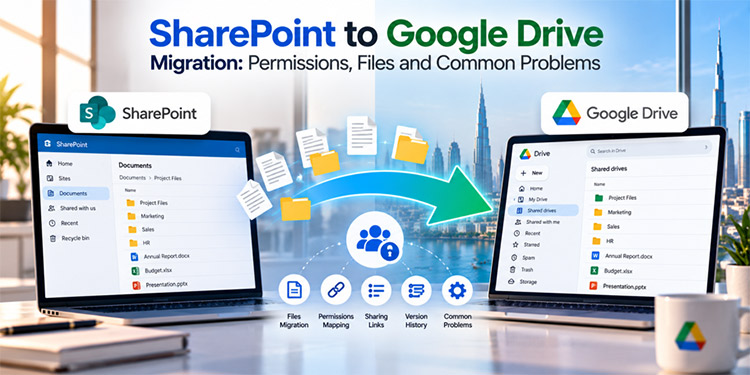
Migrating from SharePoint to Google Drive can help businesses simplify file collaboration, improve accessibility and bring document workflows into Google Workspace. However, moving company files between platforms involves more than copying folders. Permissions, sharing links, document versions, file compatibility and existing business workflows all need careful attention.
For businesses in the UAE planning a Microsoft 365 to Google Workspace migration, overlooking these details can lead to missing files, unexpected access restrictions and interruptions to daily operations. A structured migration plan helps identify potential problems before they affect employees. In this guide, we explain the most common SharePoint migration challenges, how to troubleshoot them and what businesses should check before moving their data.
What Makes SharePoint to Google Drive Migration Challenging?
SharePoint and Google Drive both support cloud-based file storage and collaboration, but their organizational structures and access models are different.
SharePoint commonly organizes documents within sites, document libraries, folders and lists. Google Drive organizes content through My Drive and shared drives, with access controlled through users, groups, memberships and file-sharing permissions.
Because these platforms handle content differently, a successful migration requires an assessment of how files are organized, who needs access and which features must continue working after the transition.
Common challenges include:
- Transferring files while maintaining the intended access permissions.
- Managing existing links shared with employees and external users.
- Identifying unsupported files and content that cannot be migrated directly.
- Preserving required version history and metadata.
- Recreating SharePoint pages, lists and workflows where necessary.
- Helping employees adapt to the new file organization.
Understanding these differences before migration helps businesses select the right migration approach.
SharePoint Permissions vs Google Drive Permissions
Permissions are one of the most important areas to review when moving company documents.
In SharePoint, access may be inherited from a site or library, assigned through groups, or configured individually for specific files and folders. Google Drive has its own permission model, including shared-drive membership, folder permissions and individual file sharing.
A migration tool may transfer supported permissions, but the result depends on the source configuration and the capabilities of the chosen service.
Common permission problems
Employees lose access to migrated files
This may happen when source accounts cannot be mapped correctly to Google Workspace users or when permissions are unsupported.
Users gain more access than expected
If the destination folder or shared drive has broader membership, users may receive access they did not have in the original environment.
External collaborators cannot open documents
Existing external-sharing arrangements may need to be recreated or adjusted to meet Google Workspace policies.
Restricted files fail to migrate
Certain permission configurations or organizational restrictions can prevent specific items from being migrated by a particular tool.
How to manage permissions during migration
- Inventory important SharePoint sites, libraries and access groups.
- Identify sensitive documents and folders with unique permissions.
- Map source accounts to the correct Google Workspace users and groups.
- Review shared-drive membership and destination folder access.
- Test access using representative employee and external-user accounts.
- Investigate permission errors reported by the migration tool.
Do not assume that successful file transfer means access permissions have been transferred exactly as intended.
Why Existing SharePoint Sharing Links May Stop Working
Employees frequently share SharePoint documents through links sent by email, Microsoft Teams or external collaboration platforms. These links may provide access to specific people, everyone in an organization or other permitted recipients.
When files move to Google Drive, the original SharePoint URLs should not be assumed to work as Google Drive links. The destination may require new links, and the appropriate access settings may need to be configured again.
Example
A sales team may have shared a product catalogue with several distributors using SharePoint links. After migration, the distributors may not be able to access the documents through those old links.
The files may have migrated successfully, but the original links still point to the source environment.
Recommended solution
- Identify frequently used internal and external sharing links.
- Record who should have access to each important document.
- Review the sharing policies configured in Google Workspace.
- Create new Google Drive links where required.
- Test access before informing employees and external partners.
- Update links in internal documents, email templates and other business resources.
Businesses should also review external-sharing restrictions to ensure that the new environment follows their security policies.
What Happens to Missing Files During Migration?
Missing files can create confusion because users may assume that every item in SharePoint will automatically appear in Google Drive.
In practice, some items may be skipped, excluded or fail during migration. Reasons vary by migration method and may include unsupported content, permission restrictions, source-side policies or processing errors.
How to identify missing files
Step 1: Review migration reports
Check the migration tool’s reports for skipped items, failed transfers and error messages.
Step 2: Compare source and destination content
Compare the expected files and folders with the content available in Google Drive. File counts alone are not enough to confirm a successful migration.
Step 3: Investigate excluded items
Check whether files were excluded because of permissions, policy restrictions, unsupported formats or other limitations.
Step 4: Resolve the underlying issue
Correct eligible source-side problems or use an alternative method for content that cannot be migrated through the selected service.
Step 5: Validate important documents
Open business-critical files and verify that their content is usable in the destination environment.
Can SharePoint Version History and Metadata Be Migrated?
Version history allows employees to review earlier document versions, while metadata can help organizations categorize, search and manage content.
For example, a finance team may need to refer to an earlier version of a spreadsheet, while a project team may rely on document properties to identify a project, department or approval status.
However, version-history and metadata support varies by migration tool and the type of content being transferred.
What businesses should check
- Which documents require historical versions?
- Does the selected migration service support the required version information?
- Which metadata fields are supported?
- Will the destination retain the information needed for internal processes?
- Are there legal, audit or retention requirements that require separate preservation?
Recommended approach
Before migrating the entire environment, select representative documents and test how versions and metadata are handled. If important information cannot be transferred, determine whether it should be retained in a separate archive or preserved through another approved method.
Do not retire the original SharePoint environment until required records have been verified and the retention plan has been approved.
SharePoint Pages, Lists and Workflows Need Separate Planning
A SharePoint environment may contain much more than files and folders. Organizations may use SharePoint pages, lists, web parts, approval workflows and integrations to support daily operations.
A document migration does not necessarily recreate these components in Google Workspace.
SharePoint pages and web parts
Internal knowledge pages, department portals and custom web parts may need to be rebuilt using an appropriate destination tool or redesigned around the new workflow.
SharePoint lists
Business teams may use lists to track projects, inventory, requests or approvals. Assess whether the data should be migrated to Google Sheets or handled by another suitable application.
Automated workflows
Existing approvals and notifications may depend on Microsoft-specific services. Identify these dependencies and determine whether the workflow needs to be recreated using Google Workspace capabilities or another business application.
How to prepare
Create an inventory of business processes that rely on SharePoint. Classify each item as:
- Content that can be migrated directly.
- Content that requires a different migration method.
- Functionality that must be rebuilt.
- Content or workflows that can be retired.
This prevents businesses from discovering critical functionality gaps after the migration is complete.
How to Choose Between My Drive and Shared Drives
Selecting the right destination structure helps employees find files and ensures that company information remains accessible to the appropriate teams.
When to use My Drive
My Drive is generally suitable for individual working documents and files managed by an individual user.
When to use shared drives
Shared drives are often more appropriate for department documents, project files and other content that belongs to a team rather than a single employee.
For example, a business might organize its content as follows:
| Department or purpose | Suggested structure |
| Finance documents | Finance shared drive |
| HR documents | Restricted HR shared drive |
| Sales resources | Sales shared drive |
| Project files | Project-specific shared drive or folder |
| Individual working drafts | My Drive |
This is a starting point, not a universal rule. The final structure should reflect the organization’s security requirements, team responsibilities and collaboration needs.
Before transferring files, confirm who will manage each shared drive, which groups need access and how sensitive information will be protected.
Common SharePoint Migration Problems and Their Solutions
Use the following troubleshooting table as an initial reference when investigating migration issues.
| Problem | Possible cause | Recommended action |
| Users cannot open files | User mapping or permissions issue | Review identity mapping and destination access |
| External collaborators lose access | Sharing settings or old links | Configure appropriate sharing and issue new links |
| Files are missing | Exclusions or failed transfers | Check reports and investigate skipped items |
| Folder access is incorrect | Inherited permissions or drive membership | Review destination structure and access rules |
| Historical versions are missing | Migration method limitations | Verify support and preserve required records |
| SharePoint pages are unavailable | Pages and web parts were not recreated | Rebuild or replace the functionality |
| Users cannot locate documents | Unfamiliar folder structure | Organize files and provide navigation guidance |
| Some files cannot be migrated | Unsupported content or restrictions | Identify the limitation and plan an alternative |
These solutions are starting points for troubleshooting. Confirm the actual cause using migration reports and the documentation for the selected migration service.
Step-by-Step SharePoint to Google Drive Migration Plan
A controlled migration process can reduce the risk of data loss, access problems and employee disruption.
Step 1: Audit the SharePoint environment
My Drive is generally suitable for individual working documents and files managed by an individual user.
Step 2: Define migration requirements
Decide what must be transferred, what can be archived and what requires a separate solution. Identify documents that require special handling because of sensitivity, version history or operational importance.
Step 3: Prepare Google Workspace
Confirm user accounts, groups, security settings and shared-drive structures. Map source users and groups to their destination identities.
Step 4: Select the migration method
Evaluate the available migration services based on supported content, permissions, reporting, scale and organizational requirements. Verify the current capabilities of the chosen service before beginning.
Step 5: Run a pilot migration
Transfer a representative sample of documents and folders. Include different permission types, file formats and business departments.
Step 6: Validate the results
Review the migration reports and verify important files, permissions, sharing arrangements and metadata. Resolve issues before expanding the migration.
Step 7: Migrate the remaining content
Use the approved plan to transfer the remaining content. Monitor progress and investigate failed or skipped items.
Step 8: Support employees after migration
Provide guidance on finding files, managing permissions, sharing documents and using shared drives. Keep the source environment available according to the approved transition and retention plan.
SharePoint Migration Checklist for UAE Businesses
Before starting a migration, use this checklist to assess whether your organization is ready.
Data and content
- Relevant SharePoint sites and document libraries have been inventoried.
- Critical files and business owners have been identified.
- Unsupported content and migration exclusions have been reviewed.
- Required historical versions and metadata have been assessed.
Permissions and security
- User and group mapping has been checked.
- Sensitive documents and restricted folders have been identified.
- External-sharing requirements have been documented.
- Destination access controls have been tested.
Business operations
- The destination folder and shared-drive structure is ready.
- SharePoint pages, lists and workflows have been assessed.
- A pilot migration has been completed.
- Migration reports have been reviewed.
- Employees have received instructions for the transition.
Compliance and retention
- Applicable data protection and industry requirements have been reviewed.
- Data location and cross-border transfer requirements have been assessed where relevant.
- Required records and retention obligations have been documented.
- The source environment’s retirement plan has been approved.
UAE organizations should assess their actual regulatory obligations rather than assuming that every business is subject to the same data residency or retention rules.
Why Choose XL Technologies for SharePoint to Google Drive Migration?
As a Google Workspace partner in the UAE, XL Technologies helps businesses transition from Microsoft 365 to Google Workspace with a structured migration approach.
We assist with SharePoint content assessment, file migration planning, permission configuration, Google Drive organization and post-migration checks. Our team focuses on identifying potential challenges early, protecting business-critical information and reducing disruption during the transition.
With careful planning and validation, we aim to minimize downtime and reduce the risk of data loss throughout your migration.
Ready to move from SharePoint to Google Drive? Connect with us to discuss your Microsoft 365 environment and find a migration approach that fits your business needs.
Frequently Asked Questions
Can SharePoint be migrated directly to Google Drive?
Yes. Google provides migration capabilities for supported SharePoint Online content. The exact content and permission support depends on the migration service and source configuration, so businesses should check current documentation before starting.
Will SharePoint permissions transfer to Google Drive?
Supported migration methods can transfer associated permissions, but not every permission configuration is necessarily supported or reproduced identically. Always validate access after migration.
Will existing SharePoint sharing links continue to work?
Do not assume that old SharePoint links will work as Google Drive links. Identify important links and recreate or redistribute Google Drive links where required.
Can I migrate SharePoint version history?
Version-history support varies by migration method. Test critical documents and establish a separate retention or archive process for any historical information that must be preserved but cannot be transferred.
Should I use My Drive or shared drives for company files?
My Drive is generally suited to individual working files, while shared drives are often better for team-owned company content. Choose the structure based on ownership, access and security requirements.
How can I reduce disruption during migration?
Audit the source environment, run a pilot migration, validate files and permissions, communicate changes and provide employee support. The amount of disruption will depend on the migration method and complexity of the environment.
Do UAE businesses need to consider data residency during migration?
Yes, where relevant to their legal, contractual or industry-specific obligations. Businesses should verify applicable requirements, data locations and cross-border transfer arrangements before selecting their destination and migration approach.
How do I know whether my SharePoint migration is complete?
Review the migration reports, investigate skipped and failed items, compare the expected and migrated content, and test critical files and permissions. A completed migration job alone does not guarantee that all business requirements have been met.