
Migrating Arabic Word Documents to Google Docs: How to Prevent Formatting Problems
By Divya – Support Engineer and Google Cloud Certified Digital Leader with 2+ years of experience in Google Workspace administration at XL Technologies. Her expertise includes user account creation, permission management, email configuration, security, and ticket handling. With proven skills, she ensures smooth, secure, and efficient Workspace operations for clients. At XL Technologies, Divya plays a key role in driving digital transformation through Google Cloud solutions. She is passionate about helping businesses maximize productivity and collaboration with Google Workspace.
- Why Arabic Word Documents Can Look Different in Google Docs
- Arabic Text Appears in the Wrong Direction
- Arabic and English Text Appear in the Wrong Order
- Arabic Fonts Look Different After Conversion
- Arabic Tables and Columns Become Misaligned
- Numbered Lists and Bullet Points Change Position
- Page Layout, Headers and Footers Change
- A Practical Workflow for Migrating Arabic Word Documents
- Arabic Document Migration Checklist
- When Should Businesses Get Migration Support?
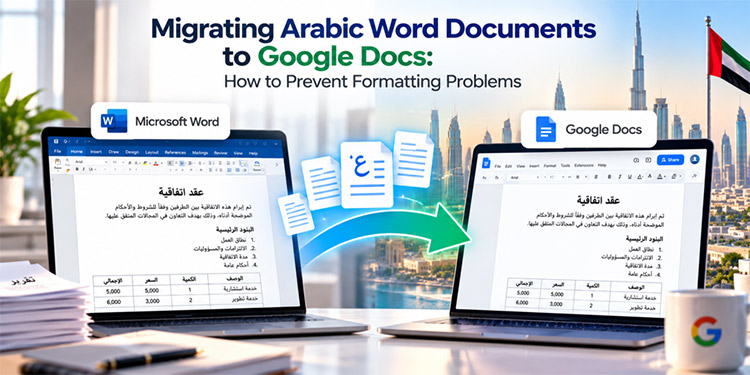
Migrating Arabic Word documents to Google Docs can create formatting challenges for businesses moving from Microsoft 365 to Google Workspace. Documents may contain right-to-left (RTL) paragraphs, Arabic and English text, tables, numbered lists, custom fonts and complex layouts that need careful checking after conversion.
For UAE businesses that regularly work with Arabic contracts, HR documents, invoices and business reports, preserving readability and document structure is an important part of migration planning. By preparing files before conversion, configuring Google Docs correctly and validating critical documents afterwards, organizations can reduce formatting issues and help employees transition to Google Workspace more smoothly.
Why Arabic Word Documents Can Look Different in Google Docs
Arabic uses a right-to-left writing direction, while English and many numbers are displayed left to right. A document containing both languages therefore needs to handle text direction at the paragraph and character levels.
Microsoft Word and Google Docs also have different document editing and formatting capabilities. When a Word file is opened or converted in Google Docs, certain layout details may appear differently depending on the original document and the features it uses.
Common issues include:
- Arabic paragraphs appearing in the wrong direction.
- English words, dates or numbers appearing in unexpected positions.
- Tables displaying columns in the wrong order.
- Arabic fonts being replaced or rendered differently.
- Numbered lists and bullet points becoming misaligned.
- Page breaks, headers, footers or spacing changing.
- Complex forms and business templates losing their original layout.
These issues do not occur in every document. The risk is higher when files use complex formatting, custom fonts or features that behave differently between the two applications.
Arabic Text Appears in the Wrong Direction
One of the most common formatting issues is incorrect paragraph direction. Arabic text may be right-aligned but still behave incorrectly when users type, edit or combine it with English content.
Why it happens
Text alignment and text direction are different settings. Aligning a paragraph to the right does not necessarily configure its direction as right to left.
Google Docs supports RTL controls that allow users to change paragraph direction. Google explains how to enable these controls in its official right-to-left editing guide.
How to prevent it
- Open Google Docs on your computer.
- Open the document containing Arabic text.
- Enable the right-to-left controls if they are not visible. From the Docs home screen, open Menu → Settings and select Always show right-to-left controls.
- Select the relevant Arabic paragraphs.
- Use the paragraph direction control to set the direction to right to left.
- Check paragraph alignment and spacing separately.
Review headings, body paragraphs, lists and text inside tables. Do not assume that changing one paragraph automatically fixes every other section.
Arabic and English Text Appear in the Wrong Order
Business documents often combine Arabic content with English product names, company names, email addresses, URLs, reference numbers and dates.
For example, an Arabic contract might include an English company name and a reference such as INV-2026-1045. When text direction is handled incorrectly, punctuation, brackets or numbers may appear in unexpected positions.
Why it happens
Mixed-language text uses bidirectional text behavior. Arabic characters generally run from right to left, while Latin characters run from left to right. Numbers and punctuation can behave differently depending on their surrounding text.
Microsoft provides a technical explanation of this behavior in its guide to text directionality.
How to prevent it
- Set the correct direction for the entire paragraph first.
- Keep English company names, email addresses and URLs together as complete text units.
- Review dates, invoice numbers, telephone numbers and reference codes.
- Avoid repeatedly changing paragraph direction to fix individual words.
- Test punctuation around brackets, slashes, hyphens and numbers.
After migration, compare important mixed-language paragraphs with the original Word document. Pay special attention to legal clauses, addresses and financial references where the position of a number or punctuation mark may affect readability.
Arabic Fonts Look Different After Conversion
A document may use a particular Arabic font to maintain a consistent brand identity or formal appearance. After opening it in Google Docs, the text may appear wider, narrower or visually different.
Why it happens
The original font may not be available in the destination editing environment, or Google Docs may use a different font when displaying the document. Font differences can affect line breaks, paragraph lengths and page layout.
How to prevent it
- Identify the Arabic fonts used in the original Word document.
- Open the document in Google Docs and inspect the font applied to the Arabic text.
- Select an appropriate Arabic font available in Google Docs.
- Check the font size, weight and line spacing.
- Review headings, tables and page breaks after making changes.
Important: If an exact font is essential for a branded or legally formatted document, confirm that the required appearance can be maintained before converting the entire document library.
Arabic Tables and Columns Become Misaligned
Arabic Word documents frequently contain tables for invoices, employee records, financial reports, quotations and contracts. A table may look correct in Word but display its columns in a different order or with altered widths in Google Docs.
Why it happens
Table direction, cell alignment, column width and text direction are separate formatting considerations. A table containing Arabic headings and English values may need different settings for its overall structure and individual cells.
How to prevent it
- Open the table properties in Google Docs.
- Check the table’s column order and choose right to left where appropriate.
- Review the alignment of Arabic headings and English values.
- Check column widths, cell padding and row heights.
- Inspect merged cells and long text that wraps onto multiple lines.
- Confirm that totals, dates and reference numbers remain under the correct headings.
For complex financial or operational tables, test a copy of the document first and compare the output with the original.
Numbered Lists and Bullet Points Change Position
Lists are often used in Arabic policies, employee handbooks, legal agreements and procedure documents. After conversion, bullets or numbering may appear on the wrong side, indentation may change, or nested items may become difficult to read.
Why it happens
List direction, paragraph direction and indentation may not match the original Word settings. A document can also contain manually typed numbering instead of native list formatting.
How to prevent it
- Apply RTL paragraph direction to Arabic list items.
- Use Google Docs’ native numbered-list and bulleted-list controls where possible.
- Review indentation for main points and nested items.
- Check that numbering follows the intended sequence.
- Inspect lists that mix Arabic text with English terms or numerical references.
Avoid correcting every line with spaces or manually inserted symbols. Native list formatting is generally easier to maintain when documents are edited collaboratively.
Page Layout, Headers and Footers Change
Some Arabic documents rely on precise page layouts, particularly contracts, official letters, invoices and company templates. After conversion, text may wrap differently, a heading may move to another page, or headers and footers may shift.
Why it happens
Differences in font metrics, margins, spacing, page settings and supported Word features can affect the layout after conversion.
How to prevent it
Before conversion, record the important layout requirements, including:
- Page size and orientation.
- Margins and paragraph spacing.
- Header and footer content.
- Page numbering.
- Tables and signature areas.
- Required page breaks.
After conversion, inspect the document in Google Docs’ page layout view. Compare the page count and the position of important sections with the original file.
If exact pagination is essential, test the document thoroughly before deciding whether it should be edited as a Google Doc or retained in its original Word format.
A Practical Workflow for Migrating Arabic Word Documents
Instead of converting all documents at once, use a staged approach that helps identify formatting problems early.
Step 1: Classify the Documents
Group files by purpose and complexity. For example, separate simple Arabic letters from contracts, financial reports, HR templates and documents containing complex tables.
Step 2: Identify Formatting Requirements
Record the Arabic fonts, paragraph direction, table layout, page structure and mixed-language elements that must remain readable.
Step 3: Select Representative Test Files
Choose a sample from each document category. Include files with RTL paragraphs, English reference numbers, tables, numbered lists and custom formatting.
Step 4: Test the Conversion
Upload a copy of each selected Word file to Google Drive and open it in Google Docs. Review the converted document rather than assuming that the original appearance will be preserved automatically.
Step 5: Correct Formatting Issues
Apply the appropriate paragraph direction, font, list settings, table direction and layout adjustments. Record recurring problems so the migration team can use consistent solutions.
Step 6: Validate Important Documents
Compare the converted files with the originals. Verify text, figures, headings, page layout and table contents. Have the relevant business owner review documents where formatting accuracy is important.
Step 7: Roll Out in Phases
After the pilot is approved, migrate the remaining documents in manageable groups. Track files that need manual corrections and provide employees with guidance for editing Arabic documents in Google Docs.
Arabic Document Migration Checklist
Use this checklist before approving migrated Arabic Word documents.
- Arabic text displays correctly from right to left.
- English words and reference numbers appear in the intended order.
- Arabic fonts are readable and consistent.
- Headings and paragraph alignment are correct.
- Tables use the intended column order.
- Bullets, numbering and indentation are correct.
- Headers, footers and page numbers have been reviewed.
- Important figures, dates and contract references have been checked.
- Page breaks and signature areas remain usable.
- Business-critical documents have been reviewed by the relevant owner.
A completed upload or conversion is not enough to confirm that a document is ready for business use. Validation should focus on both the content and the formatting that employees rely on.
When Should Businesses Get Migration Support?
Professional migration support can be useful when a business manages a large collection of Arabic Word documents, complex bilingual templates or business-critical files that require careful validation.
A migration partner can help assess document types, identify formatting risks, test representative files and plan a phased transition to Google Workspace. This is particularly useful when Arabic documents must work alongside email, shared-drive structures, user permissions and wider Microsoft 365 migration activities.
XL Technologies is a Google Workspace partner in the UAE, helping businesses migrate from Microsoft 365 to Google Workspace.
For UAE businesses, the migration plan should reflect the organization’s existing environment, document requirements and security policies.
Frequently Asked Questions
Can Arabic Word documents be opened in Google Docs?
Yes. Google Docs can open and edit supported Microsoft Word files. However, complex formatting should be reviewed after opening or converting a document.
Does Google Docs support Arabic right-to-left formatting?
Yes. Google Docs supports right-to-left controls, including paragraph-direction settings and table column-order options. Users may need to enable the controls and adjust individual document elements.
Why do English numbers and punctuation move in Arabic text?
Arabic and English use different text directions. Mixed-language text follows bidirectional text rules, which can affect the visual position of numbers and punctuation. Check the paragraph direction and review the affected text in context.
Will the original Arabic font remain unchanged?
Not necessarily. The appearance depends on the font used in the source document and the fonts available in Google Docs. Check font availability and test important templates before migration.
Should all Arabic Word documents be converted to Google Docs?
Not always. Many documents can be converted successfully, but files that depend on exact pagination, complex formatting or specialized Word features may require additional testing or may be better retained in Word format where appropriate.
How can businesses reduce Arabic formatting issues during migration?
Classify documents by complexity, test representative files, configure RTL settings, verify fonts and tables, and validate critical documents before the full rollout.